Oracle 11gR2 on Windows 7
Here are step-by-step instructions for installing Oracle Database 11g Release 2 on Windows 7 (Oracle 12c is here). It’s provided in response to questions posted on my step-by-step instructions for installing Oracle 11gR1 on Windows 7. For reference, I posted the former because it didn’t work without intervention. I hadn’t updated step-by-step instructions because Oracle Database 11g Release 2 has always worked for me when installing on Windows 7.
A number of students and blog readers have mentioned that it didn’t work for them. My guess is that they had configuration issues within the Windows 7 environment. There are some Windows 7 configuration caveats before you perform this installation, and they are:
Windows 7 Configuration Steps
- Make sure you have at least 3 GB of memory on your Windows PC, or that you can allocate 4 GB of memory to your virtual machine (the latter typically requires 8 GB of real memory to avoid extensive disk caching of memory).
- Install Oracle’s SJDK and run time for Java 6 or 7 on Windows 7 (I installed Java 7). Although either work with the database, you need the Java 6 SDK 32-bit version (at least SJDK 1.6.0_4) for Oracle SQL Developer. This means you need to download the 32-bit version even when you’re installing the 64-bit Oracle Database 11g version. The SQL Developer fix is found in this blog post.
- Disable Microsoft’s User Access Controls (UAC). I blogged about a set of Windows 7 gripes, and the second point shows you the screen shots that let you disable UAC on Windows 7.
- Configure your
C:\Windows\System32\drivers\etc\hostsfile. Use lines 1 through 3 when you’re using a DHCP IP address, and lines 1 through 4 when you’re using a static IP address. If you want to set a static IP address, check this old post on how to set a static IP address. Please note that thehostnameneeds to be lowercase.
1 2 3 4 | 127.0.0.1 localhost
::1 localhost
127.0.0.1 mclaughlinmysql mclaughlinmysql.techtinker.com
172.26.126.131 mclaughlinmysql mclaughlinmysql.techtinker.com |
- Create a user account name that doesn’t have a white space, like
McLaughlinMin the screen shots, and assign it Administrator privileges. - The Oracle Enterprise Manager (OEM) uses port ranges above 5,000, which according to Microsoft requires that you set
MaxUserPortkey in the Windows Registry. You can find more details at this Microsoft Support page. Personally, I haven’t found this necessary and after adding it to please somebody without setting it everything ran fine in Windows 7.
Registry key: HKEY_LOCAL_MACHINE\SYSTEM\CurrentControlSet\Services\Tcpip\Parameters
| Value Name | MaxUserPort |
| Value Type | DWORD |
| Value Data | 65534 |
| Value Range | 5000-65534 (decimal) |
| Value Default | 0x1388 (5000 decimal) |
| Description | This parameter controls the maximum port number that is used when a program requests any available user port from the system. Typically, ephemeral (short-lived) ports are allocated between the values of 1024 and 5000 inclusive. After the release of security bulletin MS08-037, the behavior of Windows Server 2003 was changed to more closely match that of Windows Server 2008 and Windows Vista. For more information about Microsoft security bulletin MS08-037 |
Oracle 11g Release 2 Installation Steps
- The Oracle Database 11g Release 2 files are broken down into two zip files on the Oracle site. That means you need to download both files, and then expand them into an installation directory. I called my installation directory
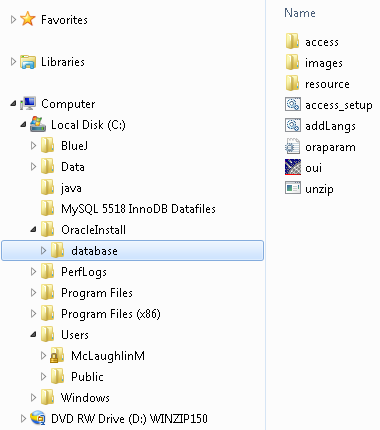
C:\OracleInstall, but you can call it whatever works for you. Here’s a screen shot of the directory after expanding both compressed files (done with WinZip 15).
database directory (or folder). Within the installation folder (C:\OracleInstall\database), you double click on the oui icon to launch (start) the Oracle Universal Installer. It’ll open a command prompt that may dwell on the screen for a few seconds up to maybe fifteen seconds.
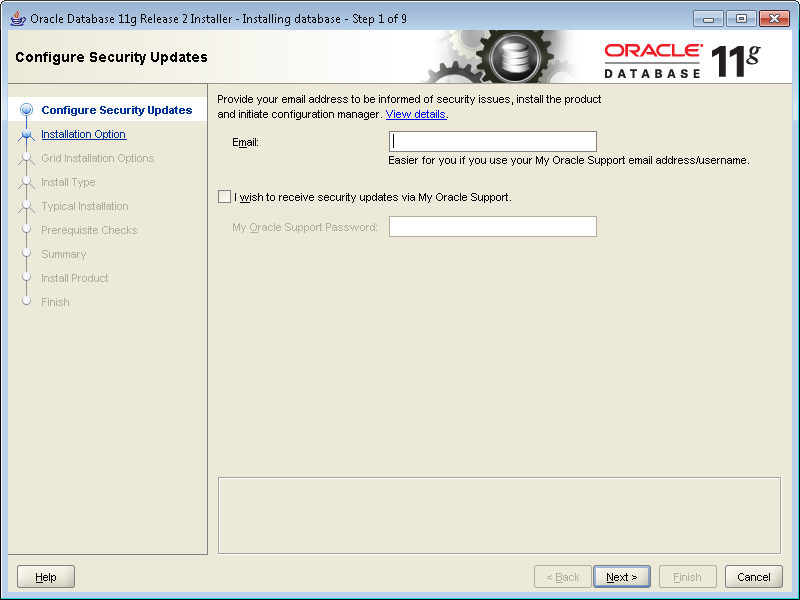
- It’s a good idea to provide an email address for security updates no matter what. You can uncheck the box if you don’t want updates via Oracle Support Services. Click the Next button to continue.
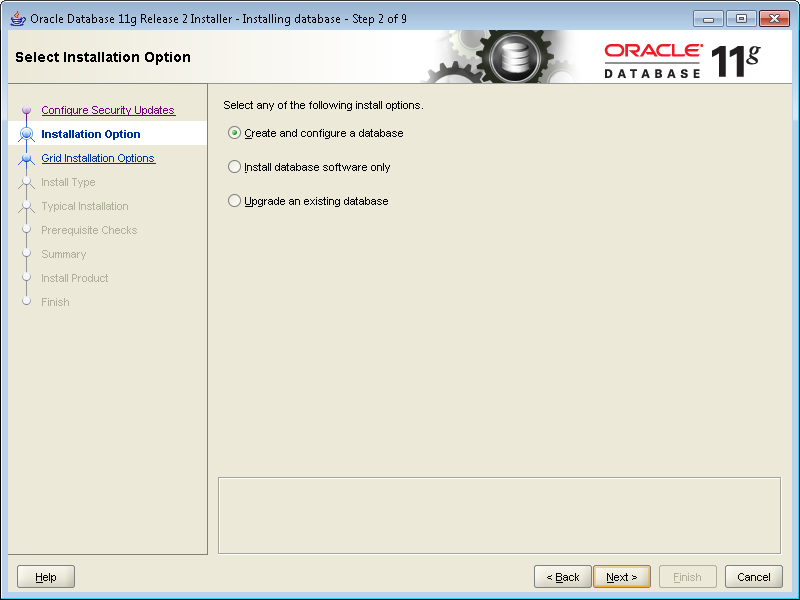
- Most developers want to Create and configure a database. If that’s your desire, leave the default radio button checked. Click the Next button to continue.
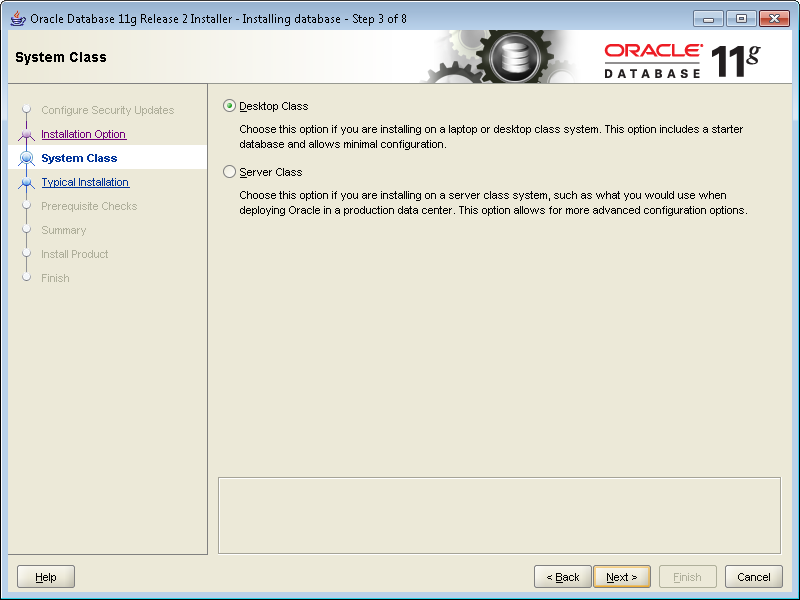
- Most developers install their test instance on a desktop or laptop. If that’s your desire, leave the default Desktop Class radio button checked. Click the Next button to continue.
- These are default settings and generally the easiest to use. I’d suggest you change the Character Set drop down to Unicode. Then, enter a password twice. Oracle requires that you use at least one capital letter and one number in a 6 character or more long password. Click the Next button to continue.
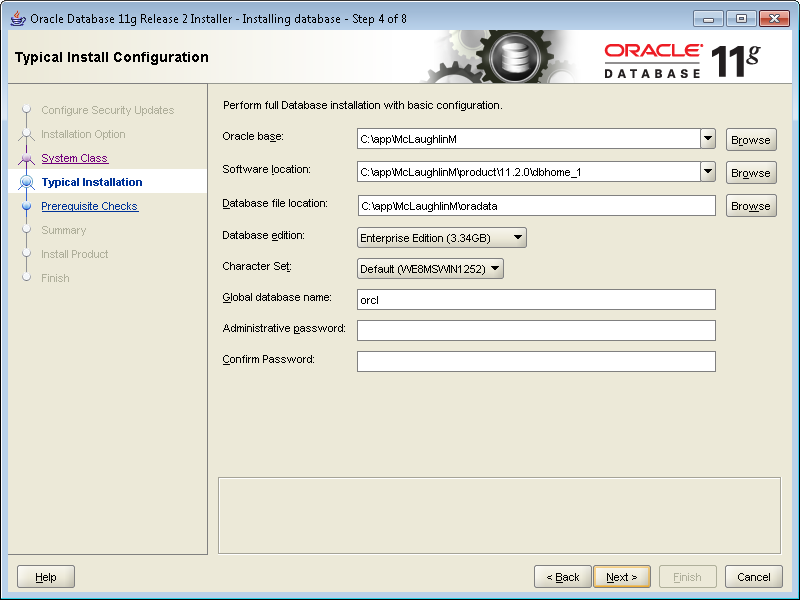
- The next screen is a progress bar that checks for prerequisites. You shouldn’t have to do anything here because it automatically advances you to the next dialog screen. This generally takes less than a minute to run but can take two or so. If you’re much beyond 3 minutes there may be a resource problem with your Windows PC or virtual machine.

- This shows you all the selected values for the installation. Unless you want to abort the installation, click the Finish button to proceed.

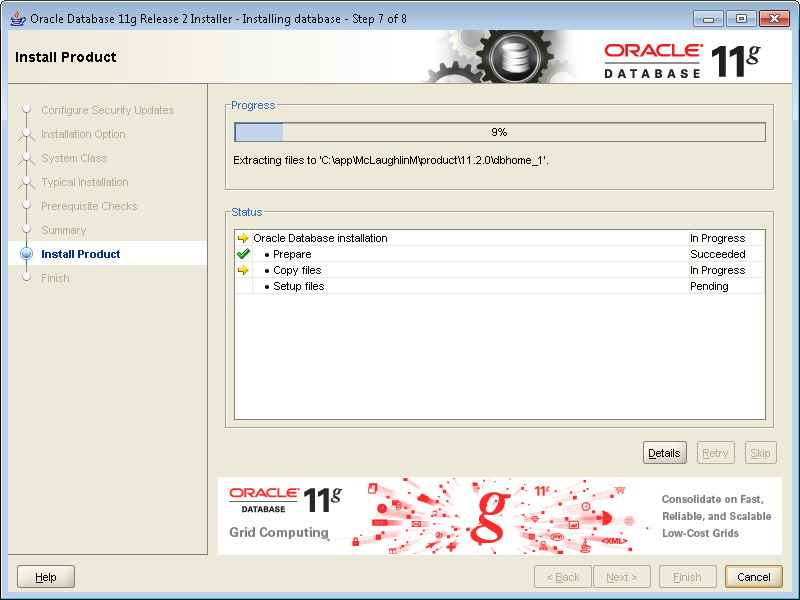
- This screen is the main progress bar, and you’ll be here somewhere between 5 and 10 minutes. The downside is that there are some dialogs that will popup during this phase and you need to authorize them, so it’s a bad time to take a break.
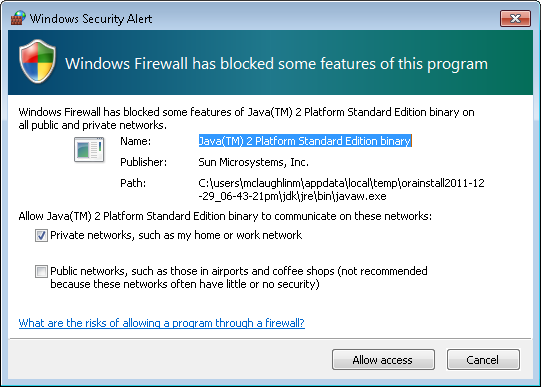
- The first popup screen requires you to authorize the Java runtime to call home. You should click the Allow Access button to proceed.
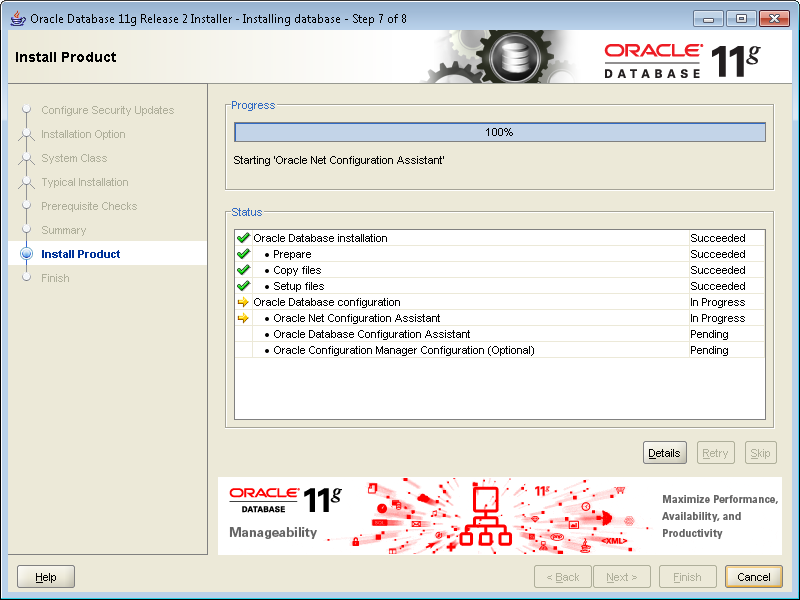
- When the progress bar starts configuring the instance, failures can occur. The first may occur during the network configuration, which typically happens if you didn’t preconfigure the
hostsfile. You don’t need to do anything but watch here unless the installer triggers an error.
- The following progress bar is launched by the Oracle Database Configuration Assistant. It typically runs without a problem. You don’t need to do anything but watch here unless the installer triggers an error. This takes a few minutes, and unfortunately requires you to stick aroung to again authorize Java.
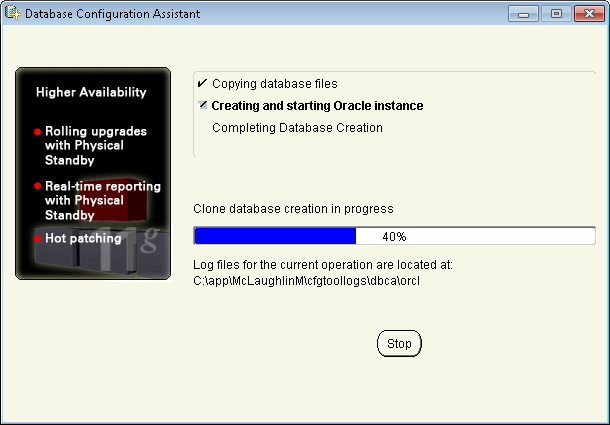
- The second popup screen requires you to authorize the Java runtime to call home. You should click the Allow Access button to proceed.
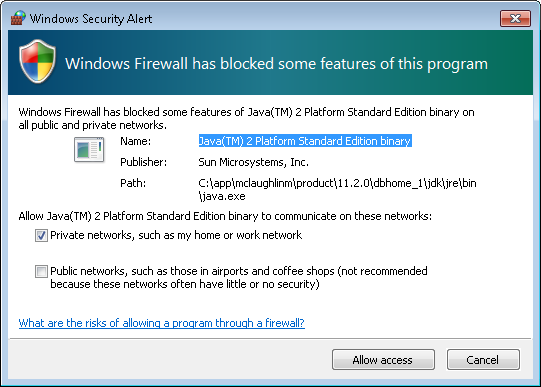
- The third and last popup screen asks you to whether you want to open other scheme. Generally, you should click the OK button to proceed.
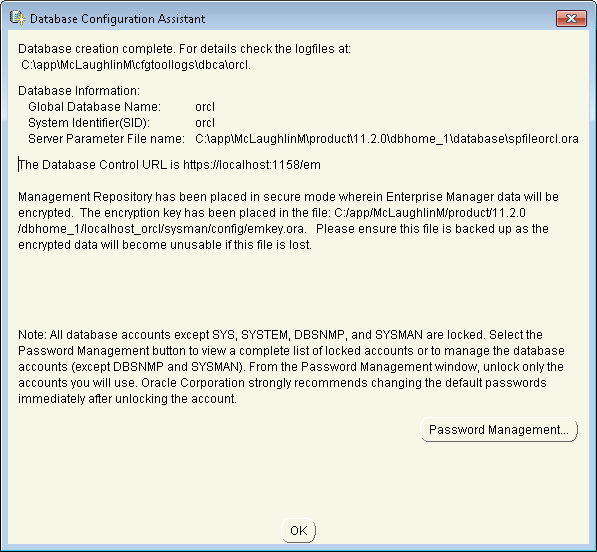
- The next dialog shows you that the network and database instances are configured. It’s also running the OEM (Oracle Enterprise Manager) installation. You can wait here but it won’t be a long wait.
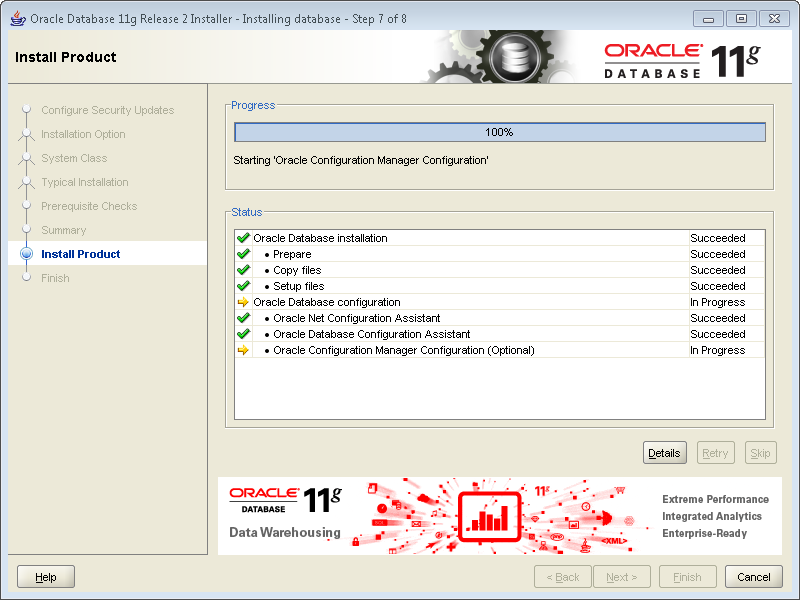
- This is the last dialog and says you’ve installed Oracle Database 11g Release 2 successfully. You can the Close button to complete the installation.
The next step is probably running Oracle Enterprise Manager (OEM). I’ve recently added this post, which arose from a question. It shows you how to run the DB Console.
Also, it’s possible that you could have a problem launching SQL Developer. If so, check how to set the proper JVM for SQL Developer post.
As always, I hope this helps folks.
 Subscribe via RSS