Reset 11g XE APEX Password
I’ve been busy working on other things since APEX 4 shipped. After I got through the installations of Oracle Database 11g XE (see prior posts), figuring out the default user name and password for APEX Administration became a tedious task. The documentation didn’t really help point to what was needed but it’s always in the code.
You reset the APEX Administration Account for Oracle Database 11g XE by doing the following steps:
- Open a command shell and change the directory to the
%ORACLE_HOME%\apexdirectory (the default Oracle Home isc:\oraclexe\app\oracle\product\11.2.0\server). Then, connect as theSYSTEMuser to the SQL*Plus utility, and run the following command that sets the temporary password to “admin“. You’ll reset the password when you connect through the web interface.
@apxxepwd admin |
- Open APEX Administration by navigating to the
http://localhost:8080/apex/apex_admin, and you’ll see the following APEX Administration Login screen. Enter admin as the user name and admin as the password and click the Login button.

- You’ll be prompted to reset the password in the following Change Password screen. Enter admin as the old password and a new password that complies with the following rules, and click the Apply Changes button.
- Password must contain at least 6 characters.
- New password must differ from old password by at least 2 characters.
- Password must contain at least one numeric character (0123456789).
- Password must contain at least one punctuation character (!”#$%&()“*+,-/:;<=>?_).
- Password must contain at least one upper-case alphabetic character.
- Password must not contain username.

- After configuring the APEX Administration account, click on the Manage Workspaces icon (or button), as shown below. If re-opening the browser to go straight here, just type the following URL
http://localhost:8080/apex/apex_admin.

- The upper left box contains what you need to create a workspace. Click on the Create Workspace option as shown below.

- The choice to add a workspace launched a provisioning workflow. You first Identify Workspace.


- The dialog box for this second provisioning step is:

- The dialog box for this third provisioning step is:

- The dialog box for this fourth provisioning step cpmfirms what you’re doing before you perform the task:

- The dialog box for this fifth provisioning step confirms success or reports failure:

- After you’ve provisioned a workspace, you can create objects like you did with APEX 3. Enter the following URL:
http://localhost:8080/apexand you’ll be brought to this login screen.

- After logging in to your Basic workspace, you’ll have these four principal widgets, as shown in the screen capture.

Maybe I went through the 2-Day APEX manual too quickly but I didn’t see how to do this, all I saw was how to use the HR sample schema. As always, I hope this helps others.
Oracle 11g XE Install
Here’s the Oracle Database 11g Express Edition step-by-step installation. I did the installation on Window 7 64-bit, and did run into a problem with the Windows Registry on a fresh installation (posted earlier on the blog).
When you download the software from Oracle, you’ll need an account and you’ll need to accept the license agreement.
- You’re prompted to accept the license agreement and can’t proceed without doing it.
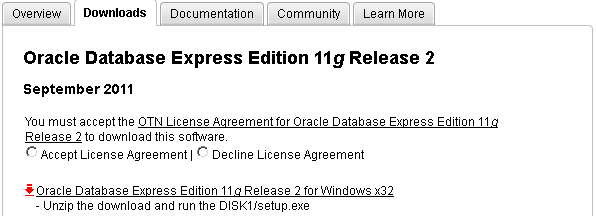
- After accepting the license agreement you can download the software.

- Unlike, the Oracle 10g XE MSI file, you’ve downloaded a compressed (
OracleXE112_Win32.zip) file, and you’ll need to explode the zip file and write it to a directory. When you write it to a directory, it looks like the following and you double click on thesetup.msifile.

It’s recommended that you right click on the setup.msi program and run it as the Administrator. If you’ve not disabled Microsoft User Access Controls (UAC), I’d do that first.
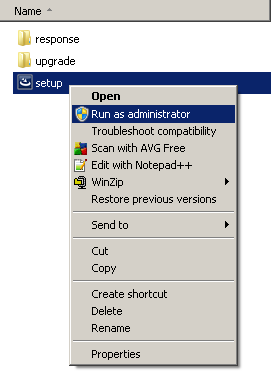
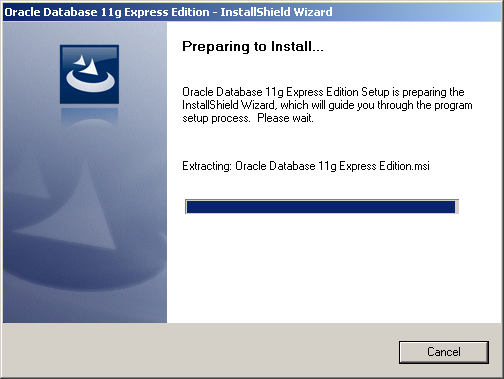
- After launching the
setup.msifile, you see the Install Shield wizard screen while the file loads, like this:
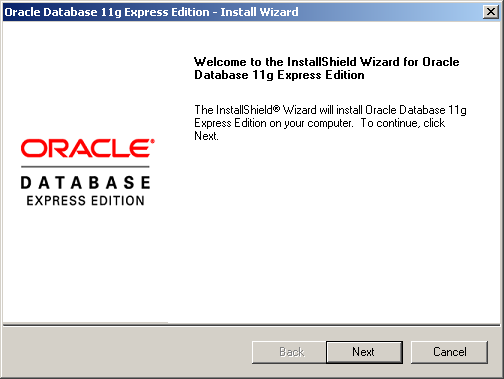
After launching the setup.msi file, and loading the MSI file, you see the first dialog box of the installation. Click the Next button to start the installation.
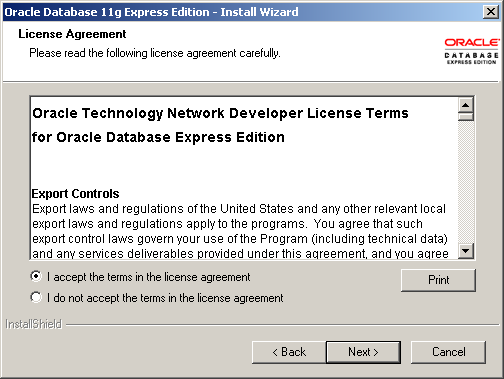
- The second dialog box is the license for the installation. Click the I accept the terms in the license agreement. radio button and then the Next button.
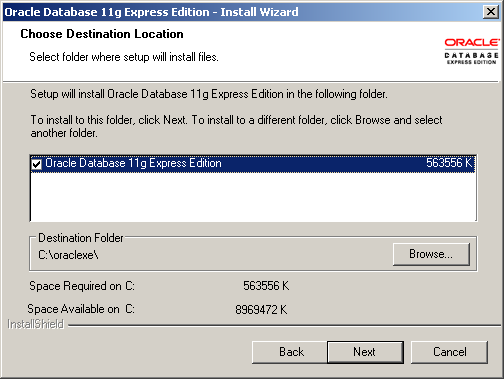
- The third dialog box lets you accept the default location or provide an override location. If you accept the default location, click the Next button to continue.
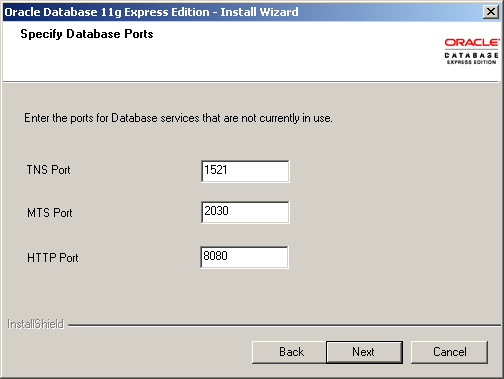
- The fourth dialog box lets you specify the TNS, MTS, and HTTP Ports. The default values are shown in the following screen shot but I’ve change my TNS port to 1621, which you’ll see later. Click the Next button to continue.
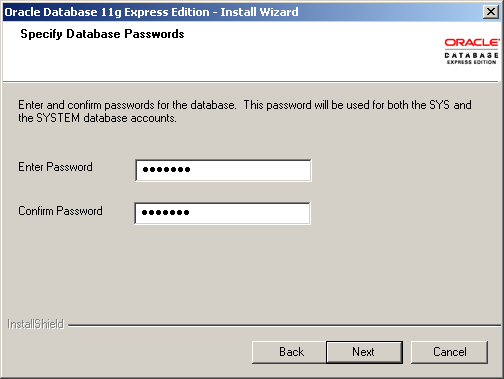
- The fifth dialog box lets you enter the password for the
SYSandSYSTEMusers. You must enter it twice and naturally they must match each other. Click the Next button to continue.
- The sixth dialog box lets you see the configuration options you’ve chosen. Note that this installation is using a TNS port of 1621 rather than the default of 1521. Click the Next button to continue.
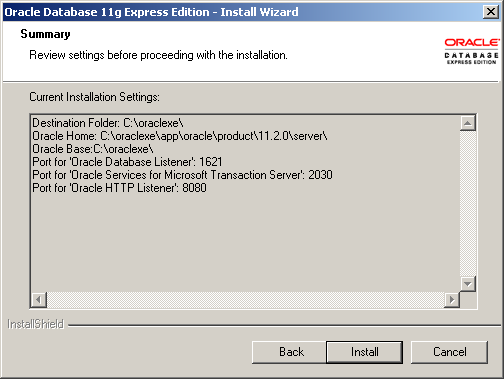
- The seventh dialog box lets you see the progress bar, take a break it can run for two or three minutes. Click the Next button to continue.
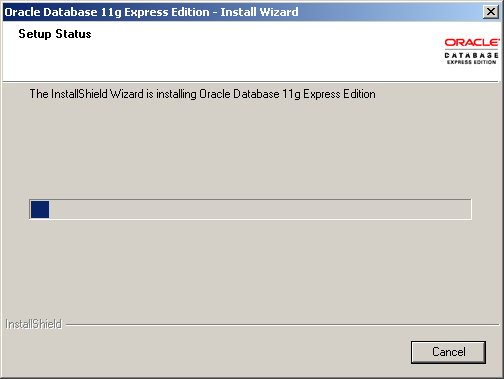
- The last dialog box lets you see that you’ve installed the product. Click the Finish button to complete the installation.
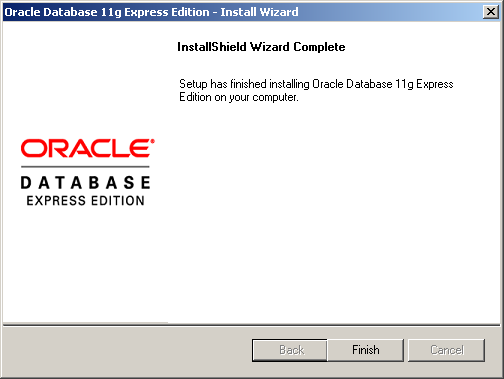
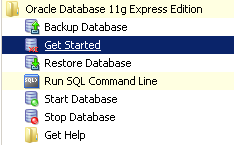
You’ve now installed Oracle Database 11g Express Edition. You can start the command line by typing sqlplus system/password in command shell or the Get Started option in your Program Menus, as shown below.
You should see this console when you launch Get Started or manually type http://localhost:8080/apex. There’s more to the web page but I scrunched it to fit into the blog. Alas, space is always at a premium.
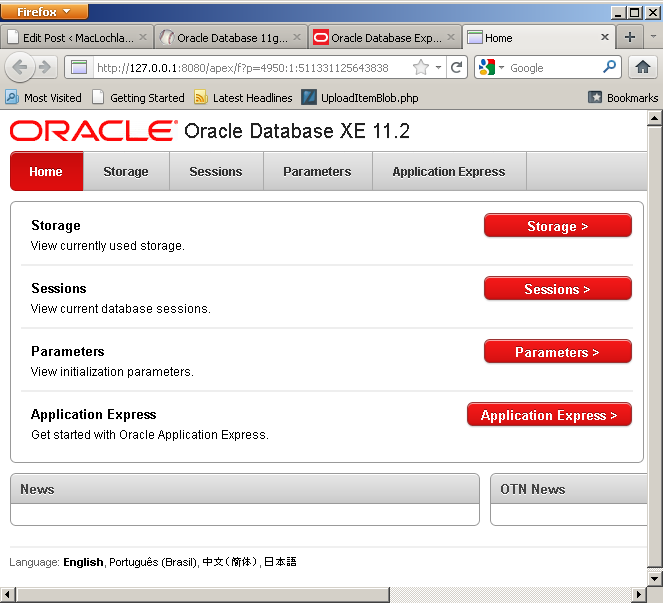
Hope this helps folks.
Oracle 11g XE Installer
Finally, I got to install Oracle Database 11g Express Edition (XE) tonight. Unfortunately, I ran into an error during the installation. A quick Google search landed me in the forum, where it gave me the impression it wouldn’t work on Windows 7, 64-bit. However, I’m tenacious with problems like this. Here’s the screenshot for the error:

The text from the image is noted below to help folks find the solution.
The installer is unable to instantiate the file C:\Users\McLAUGH~1\AppData\Local\Temp\{078E83D7-3FCC-4A72-903B-995C7CE44681}\KEY_XE.reg. The file does not appear to exist. |
The physical file isn’t missing, what failed to happen was that the installer didn’t write a Registry Key’s Data value. You can add the missing registry key’s Data value, and then click OK on the Error dialog box to continue the installation. (Replying to Andrea, I’ve provided screen shots on editing the Registry in a comment below.) It will succeed, at least it succeeded for me on Windows 7 64-bit. Rather than use abbreviations like the forum entry, the missing key is found here in the Windows Registry:
- HKEY_CLASSES_ROOT\Installer\Products\266B7A503A089BE4EAD1986A429434C1\SourceList\Media |
A screenshot shows that the Data value of the key wasn’t populated by the MSI (Microsoft Software Installer), the arguments remain for a script to populate:

You need to add the message value from your Error dialog as Data value of the Name entry 1, like this screenshot shows:

Since I believe the only things that should change are your Administrator’s hostname and the key value (type in the one that shows in the your dialog box), here’s the text you’ll need to enter:
C:\Users\hostname\AppData\Local\Temp\{078E83D7-3FCC-4A72-903B-995C7CE44681}\ |
This fix worked for me, and I hope the same holds true for you.
Oracle Database 11g XE
It’s finally available for download, and the documentation is posted too. However, there’s no official word on the next release of the Oracle database.
I’ve posted Step-by-step Installation Instructions and ran into a registry problem on Window 7 64-bit, the instructions for fixing the registry and salvaging the in-progress installation are in this blog post.
MySQL Timestamp Columns
Somebody asked how to work around an error message they got after converting one of their who-audit columns to a TIMESTAMP column. A TIMESTAMP column has a DEFAULT or ON UPDATE current timestamp. They wanted to have two TIMESTAMP columns in the same table, with the intention of:
- Having the
createdcolumn assign a current timestamp value on insert - Having the
updatedcolumn assign a current timestamp value on insert and update
This is a sample table with two of the traditional four who-audit columns:
CREATE TABLE sample ( sample_id INT UNSIGNED AUTO_INCREMENT PRIMARY KEY , created TIMESTAMP NOT NULL , updated TIMESTAMP NOT NULL DEFAULT CURRENT_TIMESTAMP ON UPDATE CURRENT_TIMESTAMP); |
When they tried to create the table they got the following error:
ERROR 1293 (HY000): Incorrect TABLE definition; there can be ONLY one TIMESTAMP COLUMN WITH CURRENT_TIMESTAMP IN DEFAULT OR ON UPDATE clause |
While you can define a table with two columns that have a TIMESTAMP data type, you can’t define a table with two TIMESTAMP columns when one holds a DEFAULT or ON UPDATE CURRENT_TIMESTAMP value. However, you can use a DATETIME data type for the created column provided it’s null allowed, like:
CREATE TABLE sample ( sample_id INT UNSIGNED AUTO_INCREMENT PRIMARY KEY , created DATETIME , updated TIMESTAMP NOT NULL DEFAULT CURRENT_TIMESTAMP ON UPDATE CURRENT_TIMESTAMP); |
You can then define an on insert database trigger that fires when you create a new row, like this:
CREATE TRIGGER sample_t BEFORE INSERT ON sample FOR EACH ROW BEGIN SET NEW.created = CURRENT_TIMESTAMP(); END; $$ |
An INSERT statement would look like this:
INSERT INTO sample VALUES (NULL, NULL, NULL); |
You would see the following if you query the table:
+-----------+---------------------+---------------------+ | sample_id | created | updated | +-----------+---------------------+---------------------+ | 1 | 2011-08-11 00:26:21 | 2011-08-11 00:26:21 | +-----------+---------------------+---------------------+ |
Hope this helps other too.
MySQL Empty Set Answer
Somebody was complaining that you couldn’t just get a Yes/No answer from a query. Yes when rows are found and No when rows aren’t found, like an “In-stock” or “Out-of-stock” message combo from a query. He didn’t like having to handle an Empty set by writing logic in PHP to provide that “Out-of-stock” message.
I told him he was wrong, you can get a a Yes/No answer from a query. You just write it differently, instead of a query like this, which get the “In-stock” message but forces you to handle the “Out-of-stock” message in the PHP code base on no records found in the query.
SELECT 'In-stock' FROM item WHERE item_title = 'Star Wars II' LIMIT 1; |
It’s simpler to write it like the one below. You gets a Yes/No answer from a query whether a row matches the query condition or not:
SELECT IF('Star Wars VII' IN (SELECT item_title FROM item) ,'In-stock','Out-of-stock') AS yes_no_answer; |
You can also write it this more generic way, which works in Oracle and MySQL:
SELECT CASE WHEN 'Star Wars VII' IN (SELECT item_title FROM item) THEN 'In-stock' ELSE 'Out-of-stock' END AS yes_no_answer FROM dual; |
There’s no Star Wars VII yet, but this returns the desired result when it’s not found in the data set. It also works when you find Star Wars II in the data set. Never, say never … 🙂
A more useful and complete approach with this technique is shown below with data fabrication.
SELECT inline.query_string , CASE WHEN inline.query_string IN (SELECT item_title FROM item) THEN 'In-stock' ELSE 'Out-of-stock' END AS yes_no_answer FROM (SELECT 'Star Wars II' AS query_string FROM dual UNION ALL SELECT 'Star Wars VII' AS query_string FROM dual) inline; |
The query runs in an Oracle or MySQL database and returns the following result set:
+---------------+---------------+ | query_string | yes_no_answer | +---------------+---------------+ | Star Wars II | In-stock | | Star Wars VII | Out-of-stock | +---------------+---------------+ |
Hope this helps somebody else too.
SQL 1st Day of Month
A couple years ago I showed how to get the last day of the month and count past leap year. Somebody asked how to get the first day of the current month.
The two easiest ways I know how to do that in Oracle is to combine the ADD_MONTHS and LAST_DAY functions, like:
SELECT TO_CHAR(TRUNC(LAST_DAY(ADD_MONTHS(SYSDATE,-1))+1),'DD-MON-YY HH24:MI') AS "One Way" , TO_CHAR(TRUNC(ADD_MONTHS(LAST_DAY(SYSDATE)+1,-1)),'DD-MON-YY HH24:MI') AS "Another Way" FROM dual |
It gives you a truncated datetime value, as you can see:
One Way Another Way --------------- --------------- 01-JUN-11 00:00 01-JUN-11 00:00 |
As the comments point out, the following is best for getting the first day of the month:
SELECT TO_CHAR(TRUNC(SYSDATE,'MM'),'DD-MON-YYYY HH24:MI') FROM dual; |
You can also return the first day of the year like this:
SELECT TO_CHAR(TRUNC(SYSDATE,'YY'),'DD-MON-YYYY HH24:MI') FROM dual; |
If you’re planning to do this in an application and Oracle Database 11g, you may want to write it as a deterministic function, like this:
1 2 3 4 5 6 | CREATE OR REPLACE FUNCTION first_day ( date_in DATE ) RETURN DATE DETERMINISTIC IS BEGIN RETURN TRUNC(date_in,'MM'); END; / |
Naturally, you can also do this with the EXTRACT function but it would get very complex quickly. Hope this answers the question.
Delete removes rows, eh?
It started as a smart remark, “The DELETE FROM statement always removes one or more rows from a table when any are found, except when the table isn’t a table.” That exception is true when the table isn’t a schema-level table but a nested table in an Oracle database. Then, the DELETE FROM statement may remove a row from the table or a row from collection held by a row.
Naturally, everybody would like an example. It took more than a couple steps to work one up and the Oracle documentation isn’t very helpful on the topic.
- Create a SQL nested table collection type of 30-character variable length strings:
1 2 | CREATE TYPE street_list IS TABLE OF VARCHAR2(30); / |
- Create a SQL user-defined object type for addresses:
1 2 3 4 5 6 7 | CREATE OR REPLACE TYPE address_type AS OBJECT ( address_id NUMBER , street_address STREET_LIST , city VARCHAR2(30) , state VARCHAR2(2) , postal_code VARCHAR2(10)); / |
- Create a SQL nested table of the user-defined object type for addresses:
1 2 | CREATE OR REPLACE TYPE address_list AS TABLE OF address_type; / |
- Create a schema-level table that uses the user-defined nested table of a user-defined object type, and a
SEQUENCEfor the table:
1 2 3 4 5 6 7 8 9 10 | CREATE TABLE employee ( employee_id NUMBER , first_name VARCHAR2(20) , middle_name VARCHAR2(20) , last_name VARCHAR2(20) , home_address ADDRESS_LIST) NESTED TABLE home_address STORE AS address_table (NESTED TABLE street_address STORE AS street_table); CREATE SEQUENCE employee_s1; |
- Insert data into the table:
1 2 3 4 5 6 7 8 9 10 11 12 13 14 15 16 17 18 19 20 21 22 23 24 25 26 27 28 29 30 31 32 33 34 35 36 37 38 39 40 41 | INSERT INTO employee ( employee_id , first_name , last_name , home_address ) VALUES ( employee_s1.NEXTVAL ,'Sam' ,'Yosemite' , address_list( address_type( 1 , street_list('1111 Broadway','Suite 322') ,'Oakland' ,'CA' ,'94612') , address_type( 2 , street_list('1111 Broadway','Suite 525') ,'Oakland' ,'CA' ,'94612'))); INSERT INTO employee ( employee_id , first_name , last_name , home_address ) VALUES ( employee_s1.NEXTVAL ,'Bugs' ,'Bunny' , address_list( address_type( 1 , street_list('21 Rodeo Drive','Suite 1000') ,'Beverly Hills' ,'CA' ,'90210') , address_type( 2 , street_list('21 Rodeo Drive','Suite 2010') ,'Beverly Hills' ,'CA' ,'90210'))); |
- Create a SQL view to explode nesting into a meaningful data set:
1 2 3 4 5 6 7 8 9 10 11 12 | CREATE OR REPLACE VIEW explode_employee AS SELECT e.employee_id , e.first_name || ' ' || e.last_name AS full_name , st.address_id , sa.column_value AS st_address , st.city , st.state , st.postal_code FROM employee e CROSS JOIN TABLE(e.home_address) st CROSS JOIN TABLE(street_address) sa ORDER BY 1, 2, 3; |
- Format output and query view:
1 2 3 4 5 6 7 8 9 10 11 | -- SQL*Plus formattting COLUMN employee_id FORMAT 999 HEADING "ID|EMP" COLUMN full_name FORMAT A16 HEADING "Full Name" COLUMN address_id FORMAT 999 HEADING "ID|UDT" COLUMN st_address FORMAT A16 HEADING "Street Address" COLUMN city FORMAT A14 HEADING "City" COLUMN state FORMAT A5 HEADING "State" COLUMN postal_code FORMAT A5 HEADING "Zip|Code" -- Query all from view. SELECT * FROM explode_employee; |
Displays the following (2 base rows times two nested table rows times two scalar nested table rows or 8 rows):
ID ID Zip EMP Full Name UDT Street Address City State Code ---- ---------------- ---- ---------------- -------------- ----- ----- 1 Sam Yosemite 1 1111 Broadway Oakland CA 94612 1 Sam Yosemite 1 Suite 322 Oakland CA 94612 1 Sam Yosemite 2 1111 Broadway Oakland CA 94612 1 Sam Yosemite 2 Suite 525 Oakland CA 94612 2 Bugs Bunny 1 21 Rodeo Drive Beverly Hills CA 90210 2 Bugs Bunny 1 Suite 1000 Beverly Hills CA 90210 2 Bugs Bunny 2 21 Rodeo Drive Beverly Hills CA 90210 2 Bugs Bunny 2 Suite 2010 Beverly Hills CA 90210 |
UPDATEstatement against a nested table:
1 2 3 4 5 | UPDATE TABLE (SELECT e.home_address FROM employee e WHERE e.employee_id = 1) e SET e.city = 'Fremont' WHERE e.address_id = 1; |
UPDATEstatement against a nested table and scalar nested table within it:
1 2 3 4 5 6 | UPDATE TABLE (SELECT e.home_address FROM employee e WHERE e.employee_id = 1) e SET e.street_address = street_list('1111 Broadway','Suite 522') , e.city = 'Oakland' WHERE e.address_id = 1; |
DELETEstatement against a nested table, which only removes the nested row:
1 2 3 4 | DELETE FROM TABLE (SELECT e.home_address FROM employee e WHERE e.employee_id = 1) ha WHERE ha.address_id = 1; |
As always, hope this helps somebody looking for syntax or approach.
MySQL’s List Partition Key
While reviewing some material and explaining list partitioning in MySQL, I heard a rumor that sounded false. The rumor was that you can’t partition on anything other than the primary key column. That’s untrue, you can partition on another column provided it’s an integer column.
It appears the culprit that led to the rumor is a misunderstanding around ERROR 1503, which returns the following:
ERROR 1503 (HY000): A PRIMARY KEY must include ALL COLUMNS IN the TABLE's partitioning function |
The problem can be recreated by defining a table with an inline primary key constraint instead of an INDEX on the auto incrementing column. Here’s an example of how to create the error message:
1 2 3 4 5 6 7 8 9 10 11 | CREATE TABLE franchise ( franchise_id INT UNSIGNED PRIMARY KEY AUTO_INCREMENT , franchise_number INT UNSIGNED , franchise_name VARCHAR(20) , city VARCHAR(20) , state VARCHAR(20)) PARTITION BY LIST(franchise_number) ( PARTITION offshore VALUES IN (49,50) , PARTITION west VALUES IN (34,45,48) , PARTITION desert VALUES IN (46,47) , PARTITION rockies VALUES IN (38,41,42,44)); |
The table should be defined without the inline PRIMARY KEY constraint on the auto incrementing column when you want to partition on another column. An index on the auto incrementing column doesn’t conflict with primary key rules. The correct syntax for a list partition would be:
1 2 3 4 5 6 7 8 9 10 11 12 | CREATE TABLE franchise ( franchise_id INT UNSIGNED AUTO_INCREMENT , franchise_number INT UNSIGNED , franchise_name VARCHAR(20) , city VARCHAR(20) , state VARCHAR(20) , INDEX idx (franchise_id)) engine=innodb PARTITION BY LIST(franchise_number) ( PARTITION offshore VALUES IN (49,50) , PARTITION west VALUES IN (34,45,48) , PARTITION desert VALUES IN (46,47) , PARTITION rockies VALUES IN (38,41,42,44)); |
The same problem can manifest itself on range partitioning. The fix is the same and here’s a code example:
1 2 3 4 5 6 7 8 9 10 | CREATE TABLE ordering ( ordering_id INT UNSIGNED AUTO_INCREMENT , item_id INT UNSIGNED , rental_amount DECIMAL(15,2) , rental_date DATE , INDEX idx (ordering_id)) PARTITION BY RANGE(item_id) ( PARTITION jan2011 VALUES LESS THAN (10000) , PARTITION feb2011 VALUES LESS THAN (20000) , PARTITION mar2011 VALUES LESS THAN (30000)); |
The MySQL 5.6 Partitioning Keys, Primary Keys, and Unique Keys article is the key reference. It’s unfortunate that MySQL can’t partition on something other than an integer with PARTITION BY LIST syntax (check the changes in MySQL 5.6 online documentation). As you’ll notice in my more recent comment back to Tim, you can when you change the SQL phrase to PARTITION BY LIST COLUMNS. MySQL now has another feature that the Oracle Database 11g supports, that is list partitioning on variable-length string columns.
There are a few required changes but here’s a working example. The index must work against the auto incrementing column. The example comes from my reply to Tim, who raised a great question.
CREATE TABLE franchise ( franchise_id INT UNSIGNED AUTO_INCREMENT , franchise_number INT UNSIGNED , franchise_name VARCHAR(20) , city VARCHAR(20) , state VARCHAR(20) , KEY idx (franchise_id)) engine=innodb PARTITION BY LIST COLUMNS (franchise_name) ( PARTITION m VALUES IN ('McDonald','Maggiano') , PARTITION p VALUES IN ('Pappa John','Pizza Hut') , PARTITION t VALUES IN ('Taco Bell','Taco Time')); |
While that works, the better approach creates two unique constraints. One unique constraint on the natural key of the franchise_number and franchise_name, which serves to optimize access to data sets looking data up in the table based on a natural key search. Another unique constraint on the surrogate (auto incrementing column) and the two natural key columns, which optimizes joins from foreign keys to the partitioned table’s primary key.
CREATE TABLE franchise ( franchise_id INT UNSIGNED AUTO_INCREMENT , franchise_number INT UNSIGNED , franchise_name VARCHAR(20) , city VARCHAR(20) , state VARCHAR(20) , UNIQUE ink (franchise_number, franchise_name) , UNIQUE enk (franchise_id, franchise_number, franchise_name)) engine=innodb PARTITION BY LIST COLUMNS (franchise_name) ( PARTITION m VALUES IN ('McDonald','Maggiano') , PARTITION p VALUES IN ('Pappa John','Pizza Hut') , PARTITION t VALUES IN ('Taco Bell','Taco Time')); |
Somebody asked for a composite partitioning (MySQL terminology is subpartitioning) example, so here it is:
1 2 3 4 5 6 7 8 9 10 11 12 | CREATE TABLE ordering ( ordering_id INT UNSIGNED AUTO_INCREMENT , item_id INT UNSIGNED , store_id INT UNSIGNED , rental_amount DECIMAL(15,2) , rental_date DATE , INDEX idx (ordering_id)) PARTITION BY RANGE(item_id) SUBPARTITION BY HASH(store_id) SUBPARTITIONS 4 ( PARTITION jan2011 VALUES LESS THAN (10000) , PARTITION feb2011 VALUES LESS THAN (20000) , PARTITION mar2011 VALUES LESS THAN (30000)); |
Hope this helps those researching ERROR 1503 on list or range partitioning.
MySQL Virtual Columns?
While preparing for next week’s classes, I ran across a new future feature of MySQL – the virtual column. It appears, according to the article, that MySQL will have virtual columns in MySQL 6.
The syntax is virtually identical to that found in Oracle databases. For example, here’s what suppose to work in the future:
1 2 3 4 5 | CREATE TABLE salary ( salary_id INT UNSIGNED PRIMARY KEY AUTO_INCREMENT , salary DOUBLE NOT NULL , bonus DOUBLE , compensation DOUBLE AS (salary + bonus)); |
It’s virtually (excuse the pun) how it would work in Oracle Database 11g. I wonder what else we see move over into MySQL. Just a note, virtual columns moved from Oracle RDB (a prior acquisition from Digital Equipment Corporation in 1996) to the Oracle Database 11g.
Equivalent syntax in Oracle Database 11g would be like this for concatenation:
1 2 3 4 5 | CREATE TABLE employee ( employee_id NUMBER , first_name VARCHAR2(20) , last_name VARCHAR2(20) , full_name VARCHAR2(41) AS (first_name || ' ' || last_name)); |
And like this for a math operation (like the one noted above for a future release of MySQL):
1 2 3 4 5 | CREATE TABLE salary ( salary_id NUMBER CONSTRAINT pk_salary PRIMARY KEY , salary NUMBER(15,2) CONSTRAINT nn_salary_01 NOT NULL , bonus NUMBER(15,2) , compensation NUMBER(15,2) AS (salary + bonus)); |
 Subscribe via RSS