Mac OS X MySQL Install
Installing MySQL 5.5.9 (updated for MySQL 5.5.16 and 5.5.18) on Mac OS X was on my list but it finally made the top. I needed to write instructions for a class that I teach because asking students who own a Mac to install VMWare and Windows before MySQL seems an unnecessary burden. Especially when you can install it directly on Mac OS X.
Mac OS X Mountain Lion (10.8.*) need to install XCode and Command Line Tools before installing MySQL. You can refer to this XCode installation and configuration post for those steps.
You can download MySQL for the Mac OS X. I downloaded the Mac OS X, Version 10.6 (x86, 64-bit) version for this installation. There were a couple shell syntax tricks beyond the instructions and then you need to configure database. That’s required because the database is installed with an unsecured anonymous and root account. After the step-by-step installation instructions, you’ll find the configuration steps to enable you to access the MySQL Monitor from a terminal session. It also configures your $PATH environment to enable you to start and stop the MySQL Daemon.
- After the download completes, open the file folder in the download directory.

- The open file folder and it will look like the following. Launch the
mysql-5.5.9-osx 10.6-x86_64.pkgfile, which installs the product.

- After launching the executable, you are now on the first page of the Install MySQL 5.5.9 installation application. Click the Continue button.

- This page contains the instructions, you can pause to read them or continue with these instructions. Click the Continue button to proceed.

- This page contains the General Public License (GPL). You agree or stop the installation. Click the Continue button to proceed.

- The following overlay dialog contains your agreement. Click the Agree button to proceed.

- There are fewer options in this installation than the Windows installation. While you can change the installation location, the software installs by default in the
/usr/local/mysqldirectory. The installation requires that you have amysqluser account on the operating system, and you don’t need to do anything because one exists as part of the default Mac OS X installation. Click the Install button to proceed.

- This dialog requires the system administrator’s password. Enter the valid password and click the OK button to proceed.

- Depending on the system, this could take more than a minute. All you can do it wait.

- This page tells you that you’ve completed the installation. Click the Close button to proceed.

- This step requires that you return to the download folder, shown in Step #2 above. Launch the
MySQLStartupItem.pkgand you’ll see the following MySQL Startup Item Installer dialog. Click the Continue button to proceed.

- This page contains the instructions for the MySQL Startup software, you can pause to read them or continue with these instructions. Click the Continue button to proceed.

- This page asks if you want to change the directory. I’d recommend you leave it as the default because it requires the System Administrator’s password to start and stop the database. It should also start for you every time you boot the machine. Click the Continue button to proceed.

- Like Step #8, this dialog requires the system administrator’s password. Enter the valid password and click the OK button to proceed.

- You could see a progress dialog box but generally it happens so fast you should land at the Installation was Successful dialog. Click the Close button to proceed.

- This step requires that you return to the download folder, shown in Step #2 above. Launch the
MySQL.prefPaneand you’ll see the following MySQL Preferences dialog. Click the Install button to proceed.

- Like Step #8 and #14, this dialog requires the system administrator’s password. Enter the valid password and click the OK button to proceed.

- Don’t click in the automatic start button unless you’re sure. Otherwise, there’s a lot of cleanup to be able to return to this point and start or stop the server as required. This is the last screen, you should click the Start MySQL Server button to start MySQL. While installing MySQL 5.5.18 I discovered that the service menu is no longer installed in the Preferences, and you must start it manually.

You can start and stop the service by opening your System Preferences, where you’ll find them in the bottom Other row. If the intent was to have it start automatically, sometimes the permissions are incorrect. You’ll get the following error in MySQL 5.5.9 but not in MySQL 5.5.16 because the MySQL DMG file is fixed. You can skip the instructions until you get to Configure User’s Shell Environment below:

"/Library/StartupItems/MySQLCOM" has not been started because it does not have the proper security settings. |
You can fix this by changing the permissions manually in a Terminal Session. Launch a Terminal Session from your Utilities folder inside your Applications folder.
Change directory to the /Library/StartupItems/MySQLCOM directory. Then, list the files. These commands should do the trick for you:
cd /Library/StartupItems/MySQLCOM ls -al |
If you see these permissions, you have problem because the group for startup files should be wheel not staff:
drwxr-xr-x 4 root staff 136 Jan 20 13:46 . drwxr-xr-x 4 root wheel 136 Feb 9 21:11 .. -rwxr-xr-x 1 root staff 1300 Jan 20 13:46 MySQLCOM -rw-r--r-- 1 root staff 469 Jan 20 13:46 StartupParameters.plist |
You can change the files with this command:
sudo chown root:wheel * |
However, now you need to step up the directory tree one level to /Library/StartupItems, and change the ownership of:
drwxr-xr-x 4 root staff 136 Jan 20 13:46 MySQLCOM |
There are two commands to do this. The first changes directory by moving to the parent directory in the hierarchy (the parent directory is represented by two dots). The second changes the group ownership of the MySQLCOM directory.
cd .. sudo chown root:wheel MySQLCOM |
Now you need to configure your shell environment and harden the database. Hardening means securing accounts with passwords. They’re covered in the next two sections.
Configure User’s Shell Environment
Assuming you accepted the defaults, you should be able to copy the required instructions directly into a .bash_login file if one exists. Unless you’ve created one before there won’t be a file. Mac OS X doesn’t automatically create the file. If you don’t have the file, you can create one with the following syntax:
touch .bash_login |
You can open the file with the vi editor or a text editor of your choice. MySQL 5.5.9 installed in /usr/local/mysql, which has changed to /usr/local/mysql-version as noted below. You can copy the following contents into the file for MySQL 5.5.16 but will need to change the file for earlier or later releases (added sudo per Don McArthur’s comment):
# Set the MySQL Home environment variable to point to the root directory of the MySQL installation. export set MYSQL_HOME=/usr/local/mysql-5.5.16-osx10.6-x86_64 # Add the /bin directory from the MYSQL_HOME location into your $PATH environment variable. export set PATH=$PATH:$MYSQL_HOME/bin # Create aliases that make it easier for you to manually start and stop the MySQL Daemon. alias mysqlstart="sudo /Library/StartupItems/MySQLCOM start" alias mysqlstop="sudo /Library/StartupItems/MySQLCOM stop" |
Changes between MySQL 5.5.16 and 5.5.18 introduce a new directory structure, you need to use the following in the .bash_login file (added sudo and status per Don McArthur’s comments):
# Set the MySQL Home environment variable to point to the root directory of the MySQL installation. export set MYSQL_HOME=/usr/local/mysql-5.5.18-osx10.6-x86_64 # Add the /bin directory from the MYSQL_HOME location into your $PATH environment variable. export set PATH=$PATH:$MYSQL_HOME/bin # Create aliases that make it easier for you to manually start and stop the MySQL Daemon. alias mysqlstart="sudo /Library/StartupItems/MySQLCOM/MySQLCOM start" alias mysqlstop="sudo /Library/StartupItems/MySQLCOM/MySQLCOM stop" alias mysqlstatus="ps aux | grep mysql | grep -v grep" |
As pointed out by Shashank’s comment, you should now use the following aliases:
alias mysqlstart='sudo /usr/local/mysql/support-files/mysql.server start' alias mysqlstop='sudo /usr/local/mysql/support-files/mysql.server stop' |
You need to save the file and close and restart a new Terminal session to place these environment variables in scope. You could also run the following to put them in scope without closing and opening the terminal:
. ./.bash_login |
The preceding command sources the environment file into active memory. This should configure your environment. After restarting the shell, you should be able to run this command to confirm the new environment:
which -a mysql |
It should return:
/usr/local/mysql-5.5.16-osx10.6-x86_64/bin/mysql |
Secure the Database
This is presently necessary because of the different file structure in a Mac OS X MySQL install, which disables the mysql_secure_installation file from running successfully. You can manually edit the file or follow these steps.
You need to connect to the database as the privileged super user, root user. This is simple because the installation doesn’t set any passwords. You open another Terminal session to make these changes or you could install MyPHPAdmin or MySQL Workbench. The tools work as well in fixing the majority of issues.
mysql -uroot |
Once connected to the database as the root user, you can confirm that passwords aren’t set and an insecure anonymous user account has been previously configured. You do that by connecting to the mysql database, which is the database catalog for MySQL. You do that by running the following command:
USE mysql; |
You can query the result set with the following query:
SELECT USER, password, host FROM USER\G |
You should see the following output plus the user’s name preceding the MacPro (or iMac.local) host name value:
*************************** 1. row ***************************
    user: root
password:
    host: localhost
*************************** 2. row ***************************
    user: root
password:
    host: MacPro.local
*************************** 3. row ***************************
    user: root
password:
    host: 127.0.0.1
*************************** 4. row ***************************
    user: root
password:
    host: ::1
*************************** 5. row ***************************
    user:
password:
    host: localhost
*************************** 6. row ***************************
    user:
password:
host: MacPro.local |
You now need to change the password for the root user. I would suggest that you do this with the SQL command rather than a direct update against the data dictionary tables. The syntax to fix the root user account require you enter the user name, an @ symbol, and complete host values, like:
SET PASSWORD FOR 'root'@'localhost' = password('cangetin'); SET PASSWORD FOR 'root'@'MacPro.local' = password('cangetin'); SET PASSWORD FOR 'root'@'127.0.0.1' = password('cangetin'); SET PASSWORD FOR 'root'@'::1' = password('cangetin'); |
You should be able to drop both anonymous user rows with the following syntax, but I did encounter a problem. Assuming you may likewise encounter the problem, the fix follows the first commands you should try:
DROP USER ''@'localhost'; DROP USER ''@'MacPro.local'; |
If either of the anonymous accounts remain in the USER table, you can manually drop them from the database catalog. This syntax will get rid of them:
DELETE FROM USER WHERE LENGTH(USER) = 0; |
You’ve completed the configuration and can now type quit; to exit the MySQL Monitor. To reconnect, you’ll now need a password, like this:
mysql -uroot -pcangetin |
Also, don’t forget to use a real password. The one shown here is trivial, which means easy to hack. Use something that others might not guess.
Configure my.cnf file
You can copy one of the sample configuration files as a starting point (as provided by Don McArthur’s comment):
sudo cp /usr/local/mysql/support-files/my-huge.cnf /etc/my.cnf |
Starting and Stopping the Database
You can manually start the database server with the following command, which you defined as aliases in your .bash_login shell script:
mysqlstart |
Stopping it is also straightforward, you do this:
mysqlstop |
You can check it’s status with this command:
mysqlstatus |
Create a synonym in MySQL
A friend wanted to know how to create a synonym to a library of stored functions and procedures in MySQL. I had to deliver the sad news that you can’t create a synonym in MySQL 5.0, 5.1, or 5.5. You need to write a wrapper function or procedure.
A synonym (available in Oracle) would eliminate the need to call a function from another database through the component selector (or period). That’s because it maps a name to the reference and name instead of requiring you to include it with each call. The following shows a call from outside of the lib database:
SELECT lib.demo('Hello World!') AS "Statement"; |
He asked how to do it, so here’s how you do it below. Assume the following for this example:
- You have a
libdatabase where you define all your functions, procedures, and tables. - You have a
appdatabase that supports web connections. - You don’t want to allow web users to connect directly to the
libdatabase because access to the tables should only be available through the functions and procedures.
This base function is simplified to avoid interaction with table data but illustrate the technique of definer rights functions. The function takes a string of up to 20 characters and returns it enclosed in double quotes. To mimic these behaviors, as the root user, you should create the app and lib databases, the dev and web users, and grant privileges to the dev user to act in the lib database and the web user to act in the app database. The example below does this as the root user, but in real life don’t use a trivial password like the example:
/* Create the two databases. */ CREATE DATABASE app; CREATE DATABASE lib; /* Create the two users, the developer can only connect locally. */ CREATE USER 'dev'@'localhost' IDENTIFIED BY 'dev'; CREATE USER 'web'@'%' IDENTIFIED BY 'web'; /* Grant privileges to be a definer in both databases. */ GRANT ALL ON app.* TO 'dev'@'localhost'; GRANT ALL ON lib.* TO 'dev'@'localhost'; /* Grant privileges to any function or privilege in the APP database to the WEB user. */ GRANT EXECUTE ON app.* TO 'web'@'%'; |
After creating and granting all the appropriate privileges, here are the steps to create the test case.
- You create and test the function as the
devuser in thelibdatabase.
/* Set the delimiter to something other than a semi-colon so they can be typed in statements. */ DELIMITER $$ /* Create a function that echoes back the string with double quotes. */ CREATE FUNCTION demo(str VARCHAR(20)) RETURNS VARCHAR(20) BEGIN RETURN CONCAT('"',str,'"'); END; $$ /* Reset the DELIMITER value. */ DELIMITER ; /* Query the function. */ SELECT demo('Ciao amico!') AS "Statement"; |
- You create and test the wrapper function as the
devuser in theappdatabase.
/* Set the delimiter to something other than a semi-colon so they can be typed in statements. */ DELIMITER $$ /* Create a function that echoes back the string with double quotes. */ CREATE FUNCTION demo(str VARCHAR(20)) RETURNS VARCHAR(20) BEGIN RETURN lib.demo(str); END; $$ /* Reset the DELIMITER value. */ DELIMITER ; /* Query the function. */ SELECT demo('Ciao amico!') AS "Statement"; |
If you’re wondering why a GRANT wasn’t required from the lib database to the app database, it’s because the dev user has access to both databases and defined both objects.
- You can test the wrapper function as the
webuser in theappdatabase.
SELECT demo('Yes, it works!') AS "Statement"; |
This is the closest to a synonym for a function or procedure that is possible. I know this solves his problem and hope it solves a couple others too.
Excel Data Validation List
A second Excel 2011 question in as many days, February is off and running. The question posed: “How do you create a data validation list without referring to a range of cells?”
You can create a data validation list without referring to a cell range. There’s a small trick to it. You enter the list of values as comma delimited strings, but you don’t enclose them in double quotes. Excel reads a set of literal text strings as if they’re a list of cell values, which is why you don’t provide the double quotes that you use in every function.

The desired list was either TRUE or FALSE, and the required behavior was that they function like Boolean variables. Fortunately, that’s straightforward when you remember that the case insensitive text strings TRUE and FALSE are Boolean values.
You create a data validation list by navigating to the Data Tab (Windows Excel 2010 it’s a Ribbon), and choose Validate. You’ll see the following list. Click on Data Validation… in the list, as shown below.

The selection launches the Data Validation dialog box. Choose List from the Allow poplist. Then, enter TRUE,FALSE in the Source entry field, like this:

Now click OK and you have a poplist. Hope this answer the question for others too.
Excel 1st Day of Next Month
I had an interesting reaction when I told my students they had to create a dynamic Excel model that required them to enter the months of the year without AutoFill feature. They were stumped. They couldn’t find a function to perform it for them.
It’s really quite easy, the EDATE function lets you find it directly. Enter any day in the current month as the first parameter and one as the number of months to add as the second parameter to the function. Voilà, you have a function to add a month to any date. The only time it returns the first of the next month is when the source date was the first day of the current month.
Here’s the solution when cell B1 contains January 14, 2011 and you want cell C1 calculated as the fourteenth day of February in the same year or February 14, 2011:
=EDATE(B1,1) |
Here’s the solution when cell B1 contains January 14, 2011 and you want cell C1 calculated as the fourteenth day of December in the prior year or December 14, 2010:
=EDATE(B1,-1) |
You can also use the EOMONTH function to find the first or last day of the month. It lets you find it the first day of the next month regardless of the start date. All you need is a simple trick.
Enter any day in the current month as the first parameter and zero as the number of months to add as the second parameter to the function, and then add one.
Here’s the solution when cell B1 contains any day in January and you want cell C1 calculated as the last day of January in the same year (rounding up).
=EOMONTH(B1,0) |
Here’s the solution when cell B1 contains any day in January and you want cell C1 calculated as the first day of January in the same year (rounding down).
=EOMONTH(B1,-1)+1 |
A subsequent question asked how to calculate the 15th day of the current month, and here’s the formula:
=EOMONTH("10-Jul-2012",-1)+15 |
Hope this helps them and others looking for the trick.
Between Vlookup Key
While the VLOOKUP and HLOOKUP functions are powerful tools in Excel, they limit their search to the first column or row of a range. This post shows you how to leverage the COUNTIFS function to perform an inclusive between search against the first two columns or rows of a range.
Moreover, the VLOOKUP function searches the first column of a range and looks for an approximate or exact match. The approximate match search throws an exception when the lookup key’s value precedes the first item in the range, and picks up the row immediately less than the lookup key. This type of search requires two condition. The data must be presorted into an ascending order for the sort column, the range must be contiguous, and two matching keys shouldn’t exist. That means that each search column or row cell points to the row of interest for any search key greater than it and less than the next. An exact match search finds the row that matches the lookup key and throws an error when there isn’t an exact match.

Neither of these allow for range searches between non-contiguous sets, like the one below. The date ranges where a value should be found are from the 16th of a month to the end of a month rather than the range between the 16th of one month to the 15th of the next. While this could be done by structuring a row with zeros the gap periods, a more effective solution is possible by using the COUNTIFS. At least, this is true from Excel 2007 forward.
The solution to this problem starts with recognizing how a COUNTIFS works. The COUNTIF provides the opportunity to compare a range of values against a single value, and the COUNTIFS allows multiple comparisons of values against ranges of values. The COUNTIFS function returns the number of matches that meet all conditions. Therefore, when a value is found in only one of the ranges the COUNTIFS function returns a 1, and when a value is found n times it returns n as a number.
The formula in cell F2 checks for the number of times the value in F1 exists:
=COUNTIFS($A$1:$A$13,"<="&F1,$B$1:$B$13,">="&F1) |
If you evaluate when the foregoing function returns 1 before performing a VLOOKUP function, you can guarantee a match within a non-contiguous range of values. That formula is:
=IF(COUNTIFS($A$1:$A$13,"<="&F1,$B$1:$B$13,">="&F1)=1,VLOOKUP(F1,A2:C13,3),0) |
Hope this helps some folks, as always …
Prepared Statement Failure
One of my students asked for some help on developing a MySQL stored procedure that would conditionally drop a foreign key constraint. I put together a quick example, which compiled fine but failed at run time. With some investigation it appears that either the MySQL 5.5 Documentation in Section 12.6 is incorrect or you can’t ALTER TABLE inside a MySQL Prepared Statement with placeholders.
A subsequent test showed me that you couldn’t use ALTER TABLE statement in a prepared statement outside of a stored procedure. I logged Bug #59604 with my other test case, and put the test case there. They closed the bug and validated what I suspected and clarified what I missed, you can’t use placeholders in prepared DDL statements.
The following is the test code example that failed:
1 2 3 4 5 6 7 8 9 10 11 12 13 14 15 16 17 18 19 20 21 22 23 24 25 26 27 28 29 30 31 32 33 34 35 36 37 38 | DROP PROCEDURE IF EXISTS dropForeignKey; DELIMITER $$ CREATE PROCEDURE dropForeignKey ( pv_database VARCHAR(64) , pv_table VARCHAR(64) , pv_constraint VARCHAR(64)) BEGIN /* Declare a local variable for the SQL statement. */ DECLARE stmt VARCHAR(1024); /* Set a session variable with two parameter markers. */ SET @SQL := 'ALTER TABLE ? DROP FOREIGN KEY ?'; /* Assign the formal parameters to session variables because prepared statements require them. */ SET @sv_table := pv_table; SET @sv_constraint := pv_constraint; /* Check if the constraint exists. */ IF EXISTS (SELECT NULL FROM information_schema.referential_constraints WHERE constraint_schema = pv_database AND TABLE_NAME = pv_table AND constraint_name = pv_constraint) THEN /* Dynamically allocated and run statement. */ PREPARE stmt FROM @SQL; EXECUTE stmt USING @sv_table, @sv_constraint; DEALLOCATE PREPARE stmt; END IF; END; $$ DELIMITER ; |
Calling this with the following syntax:
CALL dropForeignKey(DATABASE(),'telephone','telephone_fk4'); |
It raised the following error message.
ERROR 1064 (42000): You have an error IN your SQL syntax; CHECK the manual that corresponds TO your MySQL server version FOR the RIGHT syntax TO USE near '? DROP FOREIGN KEY ?' at line 1 |
Based on the comment from Bug #59604, I concluded that the ALTER TABLE statement doesn’t support using session variables. However, the CONCAT() function solves the problem. Given this is a DDL command, and any extraneous quoting would simply fail parsing rules because of the CONCAT function, SQL injection doesn’t appear a threat.
1 2 3 4 5 6 7 8 9 10 11 12 13 14 15 16 17 18 19 20 21 22 23 24 25 26 27 28 29 30 31 32 33 34 | DROP PROCEDURE IF EXISTS dropForeignKey; DELIMITER $$ CREATE PROCEDURE dropForeignKey ( pv_database VARCHAR(64) , pv_table VARCHAR(64) , pv_constraint VARCHAR(64)) BEGIN /* Declare a local variable for the SQL statement. */ DECLARE stmt VARCHAR(1024); /* Set a session variable with two parameter markers. */ SET @SQL := CONCAT('ALTER TABLE ',pv_table,' DROP FOREIGN KEY ',pv_constraint); /* Check if the constraint exists. */ IF EXISTS (SELECT NULL FROM information_schema.referential_constraints WHERE constraint_schema = pv_database AND TABLE_NAME = pv_table AND constraint_name = pv_constraint) THEN /* Dynamically allocated and run statement. */ PREPARE stmt FROM @SQL; EXECUTE stmt; DEALLOCATE PREPARE stmt; END IF; END; $$ DELIMITER ; |
A more useful approach would be to drop all foreign keys that reference a table. Here’s how you would accomplish that.
1 2 3 4 5 6 7 8 9 10 11 12 13 14 15 16 17 18 19 20 21 22 23 24 25 26 27 28 29 30 31 32 33 34 35 36 37 38 39 40 41 42 43 44 45 46 47 48 49 50 51 52 53 54 55 56 57 58 59 60 61 62 63 | -- Conditionally drop the procedure. DROP PROCEDURE IF EXISTS dropForeignKeys; -- Change delimiter to create procedure. DELIMITER $$ -- Create procedure. CREATE PROCEDURE dropForeignKeys ( pv_database VARCHAR(64) , pv_referenced_table VARCHAR(64)) BEGIN /* Declare local statement variables. */ DECLARE lv_stmt VARCHAR(1024); /* Declare local cursor variables. */ DECLARE lv_table_name VARCHAR(64); DECLARE lv_constraint_name VARCHAR(64); /* Declare control variable for handler. */ DECLARE fetched INT DEFAULT 0; /* Declare local cursor. */ DECLARE foreign_key_cursor CURSOR FOR SELECT rc.table_name , rc.constraint_name FROM information_schema.referential_constraints rc WHERE constraint_schema = pv_database AND referenced_table_name = pv_referenced_table ORDER BY rc.table_name , rc.constraint_name; /* Declare a not found record handler to close a cursor loop. */ DECLARE CONTINUE HANDLER FOR NOT FOUND SET fetched = 1; /* Open a local cursor. */ OPEN foreign_key_cursor; cursor_foreign_key: LOOP FETCH foreign_key_cursor INTO lv_table_name , lv_constraint_name; /* Place the catch handler for no more rows found immediately after the fetch operation. */ IF fetched = 1 THEN LEAVE cursor_foreign_key; END IF; /* Set a SQL statement by using concatenation. */ SET @SQL := CONCAT('ALTER TABLE ',lv_table_name,' DROP FOREIGN KEY ',lv_constraint_name); /* Prepare, run, and deallocate statement. */ PREPARE lv_stmt FROM @SQL; EXECUTE lv_stmt; DEALLOCATE PREPARE lv_stmt; END LOOP cursor_foreign_key; CLOSE foreign_key_cursor; END; $$ -- Reset delimiter to run SQL statements. DELIMITER ; |
You would test it with this call:
CALL dropForeignKeys(DATABASE(),'system_user'); |
As always, I hope this helps somebody.
Handling Bash Parameters
Bash shell or shells in general hang on details. An ex-student was trying to sort something out in Learning the bash Shell, 3rd Edition, which isn’t on my short list of good shell scripting books. I concur more or less with the comment on Amazon.com that there are too few examples in the book. I think the free examples here may serve folks in lieu of a book.
Anyway, the student’s problem involved processing multiple word parameters in an array. They were confused about how to handle ${*}, ${@} "${*}" and "${@}" when assigning them into an array for subsequent processing. By the way, I did find a decent explanation of the concept on Page 89 in my copy of the book. Though my copy is a 2nd Edition.
Here’s a dressed up sample of what they were attempting to do:
1 2 3 4 5 6 7 8 9 10 11 12 13 14 15 16 17 18 19 20 21 22 23 24 25 26 27 28 29 30 31 32 33 34 | #!/bin/bash # Print header information. echo "Begin Program!" echo "" # Count the call parameters. echo "Count call parameters [" ${#} "]" echo "" # Declare an array of delimited parameters. ARRAY=(${@}) # Declare a numeric constant of array elements. ELEMENTS=${#ARRAY[@]} # Does the parameter account agree with array elements. if [[ ${#} = ${#ARRAY[@]} ]]; then echo "Parameters match exploded array elements." else echo "Parameters ["${#}"] don't match exploded array elements ["${ELEMENTS}"]." fi # Echo line break. echo "" # Echo the parameter list. for (( i = 0; i < ${ELEMENTS}; i++ )); do echo " ARRAY["${i}"]=["${ARRAY[${i}]}"]" done # Print footer information. echo "" echo "End Program!" |
With the ARRAY=(${@}) assignment on line #12, they exploded the elements into individual words. They thought that the IFS (Internal Field Separator) environment variable was defined wrong but it wasn’t.
They called the program like this from the command-line:
sample.sh "Me too" "You too" |
Then, they got this syntax and were surprised.
Begin Program! Count call parameters [ 2 ] Parameters [2] don't match exploded array elements [4]. ARRAY[0]=[Me] ARRAY[1]=[too] ARRAY[2]=[You] ARRAY[3]=[too] End Program! |
They were close. The ARRAY=(${@}) assignment on line #12. There attempt to fix it with ARRAY=(${*}) led nowhere because it’s more or less the same and explodes into 4 words. To their credit, they put quotes around it like this ARRAY=("${*}") and got two parameters but one array element, as shown below:
Begin Program! Count call parameters [ 2 ] Parameters [2] don't match exploded array elements [1]. ARRAY[0]=[Me too You too] End Program! |
What they needed was ARRAY=("${@}") on line #12 to explode quote delimited parameters. Here’s a complete working example of the final code.
1 2 3 4 5 6 7 8 9 10 11 12 13 14 15 16 17 18 19 20 21 22 23 24 25 26 27 28 29 30 31 32 33 34 | #!/bin/bash # Print header information. echo "Begin Program!" echo "" # Count the call parameters. echo "Count call parameters [" ${#} "]" echo "" # Declare an array of delimited parameters. ARRAY=("${@}") # Declare a numeric constant of array elements. ELEMENTS=${#ARRAY[@]} # Does the parameter account agree with array elements. if [[ ${#} = ${#ARRAY[@]} ]]; then echo "Parameters match exploded array elements." else echo "Parameters ["${#}"] don't match exploded array elements ["${ELEMENTS}"]." fi # Echo line break. echo "" # Echo the parameter list. for (( i = 0; i < ${ELEMENTS}; i++ )); do echo " ARRAY["${i}"]=["${ARRAY[${i}]}"]" done # Print footer information. echo "" echo "End Program!" |
Changing that one element yields their desired output:
Begin Program! Count call parameters [ 2 ] Parameters match exploded array elements. ARRAY[0]=[Me too] ARRAY[1]=[You too] End Program! |
As always, I hope this helps some folks.
PHP leveraging PL/SQL
Somebody wanted another example of how to leverage a true/false condition from a PL/SQL stored function in PHP. The first key is that you write the function as if you were using it in SQL not PL/SQL. That means you return a NUMBER data type not a PL/SQL-only BOOLEAN data type.
Here’s the schema-level PL/SQL function:
CREATE OR REPLACE FUNCTION like_boolean ( a NUMBER, b NUMBER ) RETURN NUMBER IS /* Declare default false return value. */ lv_return_value NUMBER := 0; BEGIN /* Compare numbers and return true for a match. */ IF a = b THEN lv_return_value := 1; END IF; /* Return value. */ RETURN lv_return_value; END; / |
Here’s the PHP that leverages the PL/SQL in an if-statement on line #24:
1 2 3 4 5 6 7 8 9 10 11 12 13 14 15 16 17 18 19 20 21 22 23 24 25 26 27 28 29 30 31 32 33 34 35 36 37 38 | <?php // Capture local variables when provided. $thingOne = (isset($_GET['thingOne'])) ? $_GET['thingOne'] : 1; $thingTwo = (isset($_GET['thingTwo'])) ? $_GET['thingTwo'] : 1; // Open a connection. if(!$c = oci_connect("student","student","localhost/xe")) { die; } else { // Parse a statement. $s = oci_parse($c,"BEGIN :returnValue := LIKE_BOOLEAN(:thingOne,:thingTwo); END;"); // Bind input and output values to the statement. oci_bind_by_name($s,":returnValue",$returnValue); oci_bind_by_name($s,":thingOne",$thingOne); oci_bind_by_name($s,":thingTwo",$thingTwo); // Execute the statement. if (@oci_execute($s)) { // Print lead in string. print "[".$thingOne."] and [".$thingTwo."] "; if ($returnValue) print "are equal.<br />"; else print "aren't equal.<br />"; } // Clean up resources. oci_close($c); } ?> |
If you run into a parsing error, which is infrequent now. You can wrap the multiple row PL/SQL anonymous block call with this function. It strips tabs and line returns. Alternatively, you can put all the lines of PL/SQL on a single line.
// Strip special characters, like carriage or line returns and tabs. function strip_special_characters($str) { $out = ""; for ($i = 0;$i < strlen($str);$i++) if ((ord($str[$i]) != 9) && (ord($str[$i]) != 10) && (ord($str[$i]) != 13)) $out .= $str[$i]; // Return pre-parsed SQL statement. return $out; } |
If you run into a parsing problem on Oracle XE 10g, you can wrap the PL/SQL call like the following. Alternatively, you can place the entire anonymous PL/SQL block on a single line without embedded tabs or return keys..
10 11 12 13 | $s = oci_parse($c,strip_special_characters( "BEGIN :returnValue := LIKE_BOOLEAN(:thingOne,:thingTwo); END;")); |
Hope that answers the question and helps some folks.
My iPhone going away
Back in June, I considered replacing my iPhone with an HTC Evo.. I didn’t do it then for two reasons.  The battery life of the Evo was too short to make it worthwhile and the cost wasn’t too different. My son Joseph’s passionate sentiments for everything Apple and his membership on the family plan helped dissuade me.
When I dropped my son from the family program, AT&T took all my accumulated minutes away. Truly, it was not a customer centric moment. At the end of the day, my bill went up 15% relative to the cost of half of the family plan.
Last summer, I didn’t have an iPad nor did I foresee buying a first generation one. That was then, but I caved as summer went on and I considered writing an eBook. Notwithstanding my January comments on the iPad, I bought one in late July. It’s features made my iPhone a little jealous and me a little less enticed by the iPhone. The only thing my iPhone could do that it couldn’t was connect to the AT&T network.
Today, I bid my iPhone adieu. I made the move to economize from AT&T’s rates to Sprint. I went with the LG Optimus S. You can read a review if you’re interested about it here. The LG Optimus S is a nice mid-range Android 2.2 smart phone that cost $49.
I suppose that one of my kids will get the iPhone now. The 16 GB unit can serve as an iPod or WiFi device for email and music. These truly have become ubiquitous devices, and we owe Apple a debt for that! By the way, I love the iPad and won’t lament its lack of a camera when the next generation arrives with the new year. 😉
The REST OF THE STORY, as of February 2012, is:
- I couldn’t live on the Android. It was an awkward interface after the iPhone.
- I couldn’t return to AT&T, the coverage where I’m at is horrible and their prices are absurd.
- Sprint sells the iPhone and the coverage and price work.
My return to the iPhone and recommendation for a case is in this blog post.
PHP Database Authentication
A few years ago I wrote a couple articles showing how to use PHP to connect to an Oracle Database 10g Express Edition instance. They’re still there on Oracle’s Technical Network but the source files are missing. It appears that Oracle may have migrated the articles to a new server but failed to migrate the source files.
Don’t forget that you’ll need to Install the Zend Community Server. Then, you need to create an IDMGMT1, IDMGMT2, and IDMGMT3 users and run the create_identity_db2.sql or create_identity_db3.sql seeding script for both database validation models. You’ll find links to the original articles, the source code in zip files. The newer version with CSS is the IDMGMT3 code.
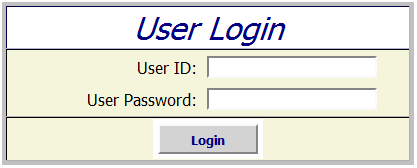
The CSS sign-on form looks like this:
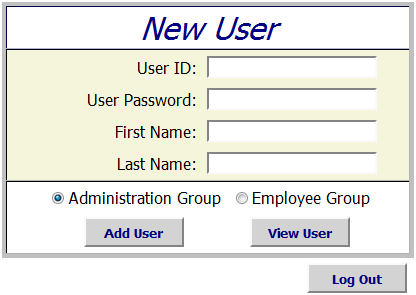
The portal page looks like this:
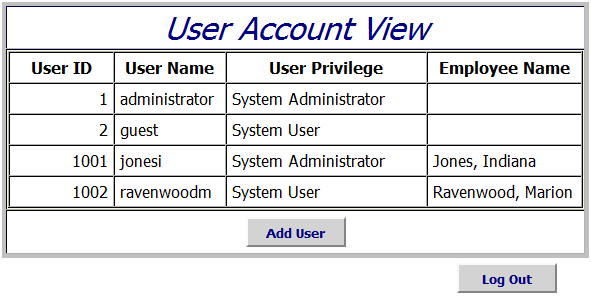
The add new user page looks like this:
The source files are as follows:
- Database Authentication #1 – IdMgmt1.zip
- Database Authentication #2 – IdMgmt2.zip
- Database Authentication #3 – IdMgmt3.zip includes the CSS but works with the same write-up as Idmgmt2.
Hope this helps those who wanted the files.
 Subscribe via RSS