MySQL MSI Service Fails
While installing the MySQL 6.0 Alpha release, I encountered a failure running the configuration component. It shows the following dialog, which hangs until you cancel it. By the way, I’ve encountered this on other MySQL 5.0 and 5.1 installs from time to time.

Don’t uninstall and reinstall because nothing will change. The only problem appears to be setting the root password. This show you how to verify it and fix the missing configuration step. While the service says it failed, it actually started. You can check that by launching services.msc from Start and Run.
You can verify the problem by attempting to connect to the MySQL server. My server is setup on localhost with port 3308 because there are multiple MySQL servers running on my virtual machine. A typically connection would look like this if your password was cangetin (the old Solaris training password):
C:\>mysql -uroot -pcangetin -P3308 |
If you get the following error message, it’s most likely a missing root password.
ERROR 1045 (28000): Access denied for user 'root'@'localhost' (using password: YES) |
Since my machine is running multiple MySQL servers and it’s my preference to associate their execution to their binaries, the paths to the installations aren’t loaded automatically on installation. A quick caution, my path statements are from the Windows XP 64-bit installation and they’ll differ from a 32-bit installation path. Specifically, the executable programs are in C:\Program Files (x86) directory not C:\Program Files. You can set the path like this:
C:\>set PATH=C:\Program Files (x86)\MySQL 6.0\MySQL Server 6.0\bin;%PATH% |
To verify and fix the problem requires you login without a password, connect to the mysql database, and query the user table. All those steps follow below, unless you’re on Microsoft Vista. If you’re running Microsoft Vista follow these instructions.
C:\>mysql -uroot -P3308 Welcome to the MySQL monitor. Commands end with ; or \g. Your MySQL connection id is 2 Server version: 6.0.10-alpha-community MySQL Community Server (GPL) Type 'help;' or '\h' for help. Type '\c' to clear the buffer. mysql> USE mysql; Database changed mysql> SELECT host, user, passowrd -> FROM user WHERE user='root' AND host='localhost'\G *************************** 1. row *************************** Host: localhost User: root Password: 1 row in set (0.00 sec) |
You fix this problem by running the following grant of privileges to the root user:
mysql> GRANT ALL ON *.* TO 'root'@'localhost' -> IDENTIFIED BY 'cangetin' WITH GRANT OPTION; Query OK, 0 rows affected (0.00 sec) |
I learned this technique by attending the MySQL for Database Administrator’s course. I hope it solves a mystery for somebody along the way. I also hope that Oracle Education maintains the excellent folks that Sun Microsystems acquired when they snagged MySQL.
MySQL export to CSV
While working through export techniques in MySQL (5.1.34-community), I discovered some tricks and techniques with MySQL exports to a CSV file.
Here’s a standard export statement to a CSV file format:
mysql> SELECT * -> INTO OUTFILE 'C:/Data/City.csv' -> FIELDS TERMINATED BY ',' -> ENCLOSED BY '"' -> ESCAPED BY '\\' -> LINES TERMINATED BY '\r\n' -> FROM City; Query OK, 4079 ROWS affected (0.02 sec) |
On Microsoft Windows, when you attempt to export it a second time, you’ll get an error unless you’ve previously deleted the physical file. You’ll also need the \r on the Windows platform but not the Linux platform.
mysql> SELECT * -> INTO OUTFILE 'C:/Data/City.csv' -> FIELDS TERMINATED BY ',' -> ENCLOSED BY '"' -> ESCAPED BY '\\' -> LINES TERMINATED BY '\r\n' -> FROM City; ERROR 1086 (HY000): File 'c:/Data/City.csv' already EXISTS |
While reviewing Alan Beaulieu’s Learning SQL, 2nd Edition, I noticed he’s got a small example in his Appendix B. He’s using the back-quoted backslash approach to directories in Windows. You can use it, but I prefer the one shown in my examples. Here’s the alternative syntax for the outbound file line:
-> INTO OUTFILE 'C:\\Data\\City.csv' |
When you want to use the CASE statement, you need to use a derived (MySQL terminology). It appears that you can’t include a CASE statement in the SELECT clause when exporting the contents to an OUTFILE. Also, for reference, MySQL doesn’t support the WITH clause.
SELECT * INTO OUTFILE 'c:/Data/City4.csv' FIELDS TERMINATED BY ',' ENCLOSED BY '"' ESCAPED BY '\\' LINES TERMINATED BY '\r\n' FROM (SELECT ID , CASE WHEN Name IS NULL THEN '' ELSE Name END AS Name , CASE WHEN CountryCode IS NULL THEN '' ELSE CountryCode END AS CountryCode , CASE WHEN District IS NULL THEN '' ELSE District END AS District , CASE WHEN Population IS NULL THEN '' ELSE Population END AS Population FROM City) Subquery; |
Hope this helps somebody.
Oracle Interval Data Types
I saw an interesting post on INTERVAL YEAR TO MONTH while checking things out today. It struck me as odd, so I thought I’d share a similar sample along with my opinion about how it should be done in a PL/SQL block.
The example is a modification of what I found in a forum. You should see immediately that it’s a bit complex and doesn’t really describe what you should do with any months. Naturally, the example only dealt with years.
DECLARE lv_interval INTERVAL YEAR TO MONTH; lv_end_day DATE := '30-APR-2009'; lv_start_day DATE := '30-APR-1975'; BEGIN lv_interval := TO_CHAR(FLOOR((lv_end_day - lv_start_day)/365.25))||'-00'; DBMS_OUTPUT.put_line(lv_interval); END; / |
I suggest that the better way is the following because it allows for months, which are a bit irregular when it comes to divisors.
DECLARE lv_interval INTERVAL YEAR TO MONTH; lv_end_day DATE := '30-APR-2009'; lv_start_day DATE := '30-JAN-1976'; BEGIN lv_interval := TO_CHAR(EXTRACT(YEAR FROM lv_end_day) - EXTRACT(YEAR FROM lv_start_day)) ||'-'|| TO_CHAR(EXTRACT(MONTH FROM lv_end_day) - EXTRACT(MONTH FROM lv_start_day)); DBMS_OUTPUT.put_line(lv_interval); END; / |
Let me know if you’ve another alternative that you prefer.
Native Mac Oracle 10gR2
I noticed today working with my students on downloads for the new term that Oracle finally released Oracle Database 10g Release 2 for Mac OS X Intel. That’s awesome until you see what it doesn’t include. You can find the installation instructions along with a list of unsupported products here. The real instructions are inside the zip file that you download.
If you’re like me, you’re asking: “When does Oracle Database 11g Release 1 for Mac OS X Intel ship?” However, I’m downloading it right now to test.
Oracle XE Install
Some folks asked me to post Oracle Database 10g Express Edition step-by-step installation and how to setup an initial user/schema. There’s not much difference between the Windows and Linux installation but this one is the Windows XP installation.
Here are the eight steps required to run the MSI program:
1. Launch the MSI icon from your Windows Explorer:

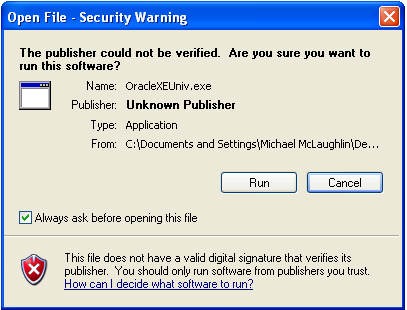
2. Click the run button to extracing the zip file:
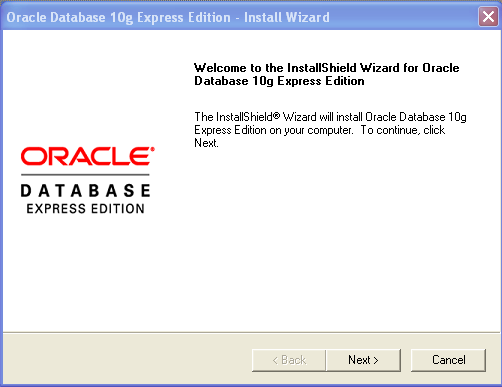
3. Click the Next button to run the Oracle Database 10g Expression Edition install wizard:
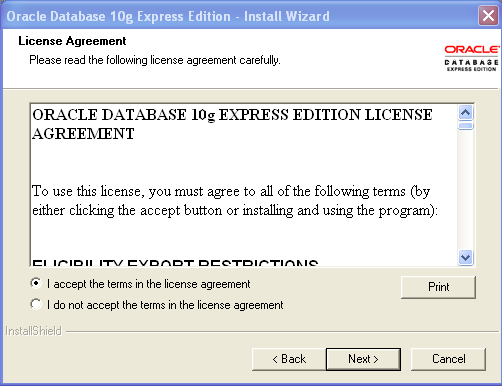
4. Accept the license agreement and click the Next button:
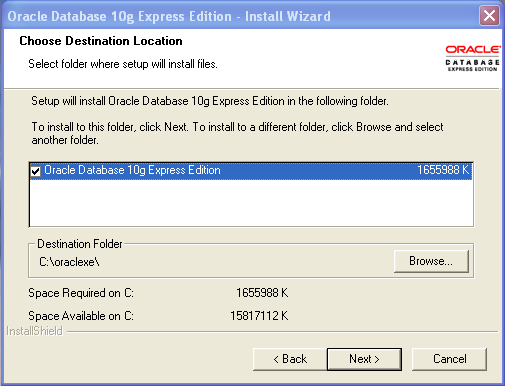
5. You can change the default installation base folder by clicking the Browse button, but why bother. Click the Next button to proceed.
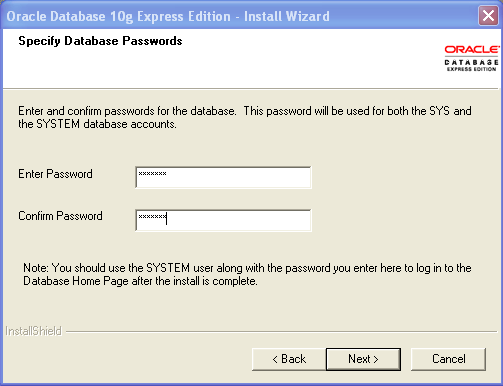
6. This is the screen where you enter the privileged user account for the Oracle database. Make sure you’ll remember the password you enter. When you’ve entered it twice, click the Next button to continue the installation.
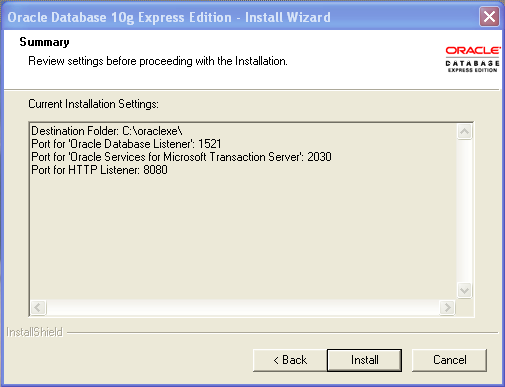
7. The Summary dialog shows you the ports for the installation. If you want to access this machine externally from the local host, you should open these ports for TCP transactions in your firewall. Click the Install button to proceed.
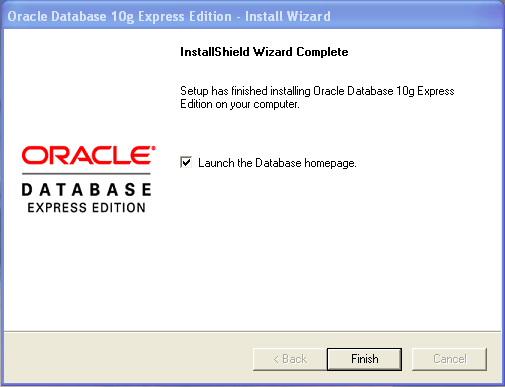
8. The last screen tells you that the InstallShield Wizard is complete. Make sure the Launch the Database homepage check box checked and click the Finish button to complete the installation.
After you’ve installed the database, you should immediately create a schema where you’ll work. The next steps show you how to create your own user/schema in the Oracle Database 10g XE instance.
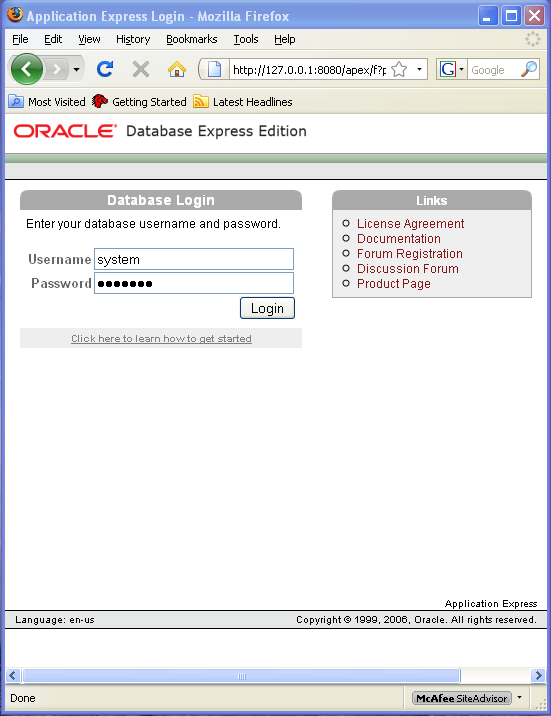
1. The Database homepage provides you with a web login to the database. The only configured user at this point is the privileged user, which is known as the system user. The password to this account is the same as the one you entered during the product installation.
2. After you sign on to the database, you’ll be on the following console page. Click the Administration button on the far left.
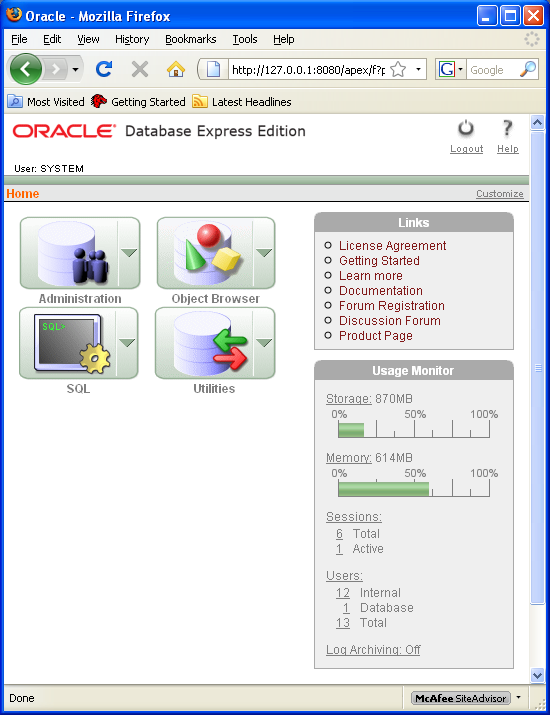
3. The middle Database Users button in the web page allows you to create new database users. Click the Database Users image to proceed.
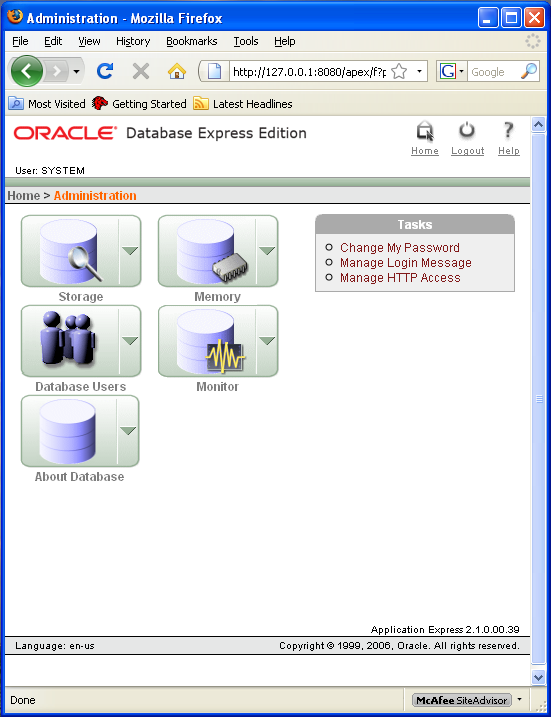
4. The Manage Database Users console lets you create or manage existing users. Click the Create button to create a new user.
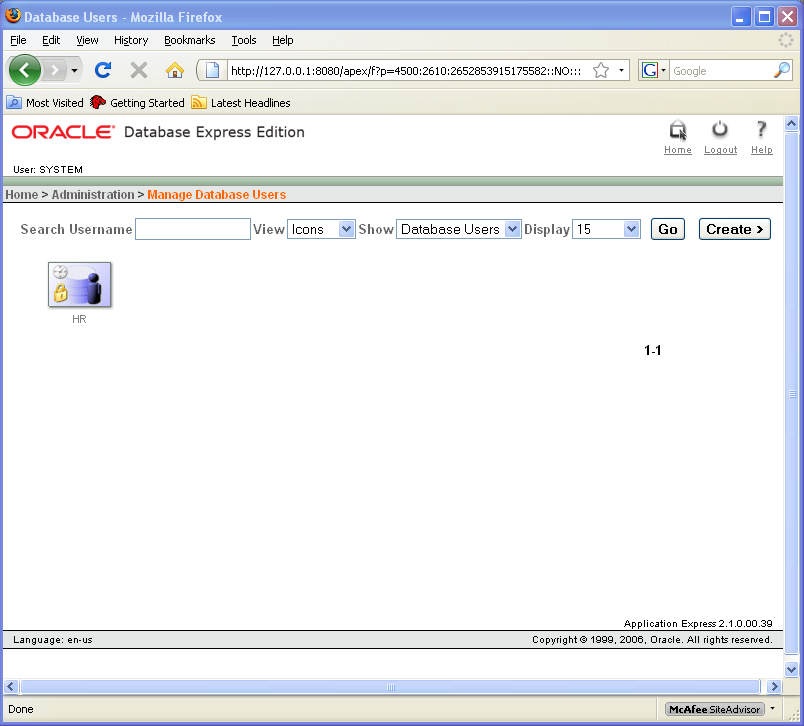
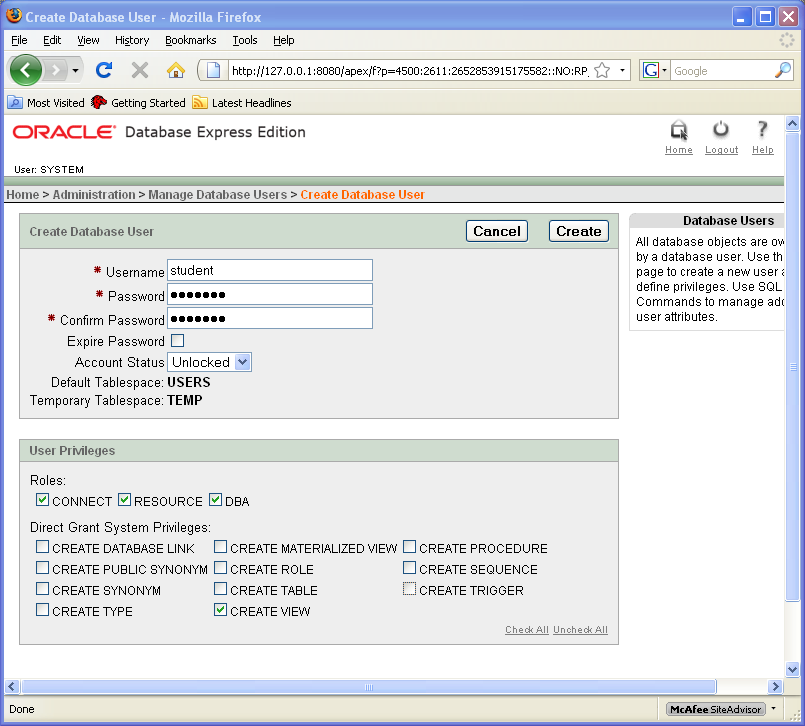
5. The Create Database User console lets you enter a user name and password plus lets you grant necessary permissions to the new user. The entries on this form create a STUDENT user/schema with superuser responsibilities. The DBA role grants those superuser privileges. You click the Create button to setup a new user.
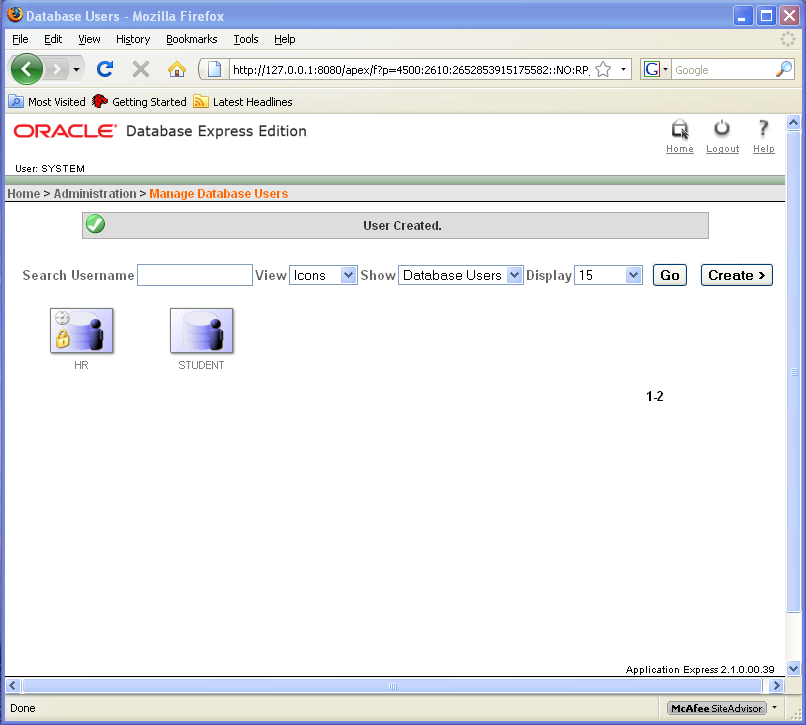
6. After you create the user, you’ll see the following screen. You can now click the Logout link to exit the application. Then, you can logon again as the STUDENT user.
I hope this meets the needs of new users.
VMWare and PowerShell
There is a nasty little surprise Microsoft PowerShell can deliver when you try to install it in a virtual machine. You can’t do it if you’ve built the VMWare Fusion instance with the default SCSI hard drive option.
It appears that Microsoft PowerShell, a prerequisite for Microsoft SQL Server 2008 Express edition, can’t work with the SCSI driver. At least, when I rebuilt the Microsoft Vista instance with an IDE hard drive it worked.
If anybody knows the details of why it fails, please share it with me and other readers.
Another tidbit about installing Microsoft SQL Server 2008 Express without having installed the .NET Development Suite, you must patch it. These were required on Microsoft Vista (32-bit) before you could successfully install SQL Server 2008 Express Edition.
1. Microsoft .Net Framework 3.5 SP1 (even if you’re more current).
2. Microsoft PluginInstall (verifies you’ve a licensed copy).
3. Microsoft Installer 4.5.
4. Microsoft Windows PowerShell 1.0.
The list of files for the installation on Windows Vista 32-bit are:

The installation screen shots from my earlier install are here. You must also import the correct certificate. A pre-installation Microsoft .NET Application Security warning will stop the installation completely. If you click the warning, you’ll see this message:

Enter the URL in your browser and you’ll get the following if it was successful.

I choose not to enable automatic updates because it often runs at awkward times. Ultimately, the installation worked fine.
External C Procedure
Somebody wanted to know how to write an external procedure in C. I entered the reply as a comment and then thought it would be better as a blog post. Here are the instructions for deploying and calling an external procedure.
The quick list of things to do, summarized from Chapter 13 on External Procedures from my Oracle Database 11g PL/SQL Programming book are:
1. Configure your tnsnames.ora file with a callout listener, which is required because the IPC/TCP layers must be separated. That means your LISTENER should only support the TCP protocol, which means you’ll remove the IPC line from your listener.ora file. If you fail to take this step, you’ll encounter the following error:
ORA-28595: Extproc agent: Invalid DLL Path |
Your callout listener has two parts, the CALLOUT_LISTENER and the SID_LIST_CALLOUT_LISTENER listener. Your listener.ora file should look like this:
CALLOUT_LISTENER = (DESCRIPTION_LIST = (DESCRIPTION = (ADDRESS_LIST = (ADDRESS = (PROTOCOL = IPC) (KEY = extproc) ) ) ) ) SID_LIST_CALLOUT_LISTENER = (SID_LIST = (SID_DESC = (SID_NAME = PLSExtProc) (ORACLE_HOME = <oracle_home_directory>) (PROGRAM = extproc) (ENV = "EXTPROC_DLLS=ONLY:/<customlib>/writestr1.so,LD_LIBRARY_PATH=/lib") ) ) |
2. You also need to have a tnsnames.ora file with an instance TNS alias and EXTPROC alias, like:
ORCL = (DESCRIPTION = (ADDRESS = (PROTOCOL = TCP) (HOST = <host_name>.<domain_name>) (PORT = 1521) ) (CONNECT_DATA = (SERVER = DEDICATED) (SERVICE_NAME = <database_sid>) ) ) EXTPROC_CONNECTION_DATA = (DESCRIPTION = (ADDRESS_LIST = (ADDRESS = (PROTOCOL = IPC) (KEY = EXTPROC) ) ) (CONNECT_DATA = (SID = PLSExtProc) (PRESENTATION = RO) ) ) |
3. Create a shared library, like this:
#include <stdio.h> void writestr(char *path, char *message) { FILE *file_name; file_name = fopen(path,"w"); fprintf(file_name,"%s\n",message); fclose(file_name); } |
4. In Linux, compile the shared library from Step #1 with the following syntax:
gcc -shared -o writestr1.so writestr1.c |
If you encounter an error like this:
/usr/bin/ld: /tmp/ccTIWHVA.o: relocation R_X86_64_32 against `.rodata' can not be used when making a shared object; recompile with -fPIC /tmp/ccTIWHVA.o: could not read symbols: Bad value collect2: ld returned 1 exit status |
Then, use this alternative syntax:
gcc -shared -fPIC -o writestr.so writestr.c |
5. Create a library. Granting CREATE LIBRARY is a potentially large security risk, and a DBA should put all external procedure libraries in a single schema with additional monitoring protocols.
CREATE [OR REPLACE] LIBRARY library_write_string AS | IS '/<customlib>/writestr1.so |
6. Write a wrapper to the library.
CREATE OR REPLACE PROCEDURE write_string ( PATH VARCHAR2, message VARCHAR2 ) AS EXTERNAL LIBRARY library_write_string NAME "writestr" PARAMETERS (PATH STRING, message STRING); |
7. Call the wrapper procedure with valid values:
BEGIN write_string('/tmp/file.txt','Hello World!'); END; / |
Hope this helps some folks.
VMWare, Spaces, and F8
Starting writing with the new publisher’s template and found that I couldn’t use Word 2007 or Word 2008. I ran into a neat twist with the F8 key when building a Windows XP virtual machine for Word 2003. Whether inside or outside the virtual machine, the focus for the F8 key always stayed with Mac OS X. That meant F8 launches Spaces instead of letting the Windows XP install proceed.
The fix was simple enough, I disabled F8 as the launch key for Spaces. Then, it let the Windows XP install work.
Should that work around be there? It’s probably a bug in VMWare Fusion, Version 2.0 (116369). If you know for sure, let me and other readers know.
EMCA drops SYSMAN
I noted a bug in the emca utility in this earlier blog on reconfiguring OEM. It manifest itself in Oracle 11g (11.1.0.6) on the Windows platform. Testing found that it’s fixed in the new Oracle 11g (11.1.0.7). This means you no longer have to manually drop the SYSMAN schema because the following command does that now, like it should.
C:\Data> emca -deconfig dbcontrol db -repos DROP |
VMWare and Fedora 10
It sometimes gets tiresome to sort the VMWare compatibility issues with Linux release-by-release but at the end of the cycle it’s fine. I downloaded the current Fedora 10 Live release because it is so much smaller than the install disk. It uses a kernel of 2.6.27.5-117.fc10.i686. I encountered a critical errors when I tried to install the VMWare Toolkit from VMWare Fusion, version 2.0.3 (156731). The only error guidance you’ll get is that there isn’t any make file.
There’s a twist here if you’re most familiar with Ubuntu and sudo command execution. You need to su to the root account and run everything as root user. An alternative would be to edit the /etc/inittab file to allow the root user to boot the instance. The default is 5 (X11). You enable the root user by changing it to 3 (full multiuser mode). Don’t forget to change it back, you really shouldn’t log in as the root user. Anyway, you’ll have to do it to run the VMWare Toolkit successfully as shown later in the post.
You fix the incompatibility of the VMWare Fusion Toolkit by downloading the following two missing RPMs. You should be able to find them here. As to why they’re not in the Live DVD distribution, who knows.
binutils-2.18.50.0.9-8.fc10.i386.rpm gcc-4.3.2-7.i386.rpm glibc-2.9-2.i686.rpm glibc-devel-2.9-2.i386.rpm glibc-headers-2.9-2.i386.rpm kernel-devel-2.6.27.5-117.fc10.i686.rpm kernel-headers-2.6.27.5-117.fc10.i386.rpm libgomp-4.3.2-7.i386.rpm |
You can’t run some of them through the RPM utility, so you should probably run them all at the command line. The command line syntax and sequence for these packages is:
rpm -ivh kernel-headers-2.6.27.5-117.fc10.i386.rpm rpm -ivh kernel-devel-2.6.27.5-117.fc10.i686.rpm rpm -ivh binutils-2.18.50.0.9-8.fc10.i386.rpm rpm -ivh libgomp-4.3.2-7.i386.rpm rpm -ivh glibc-headers-2.9-2.i386.rpm rpm -ivh glibc-devel-2.9-2.i386.rpm rpm -ivh glibc-2.9-2.i686.rpm rpm -ivh gcc-4.3.2-7.i386.rpm |
As the root user, you can now install the VMWare Toolkit. While running the installation, you’ll receive a prompt to confirm the /usr/src/linux/include. Don’t accept the default path because it won’t work unless you created a symbolic link. The kernel header files require you to enter the following path:
/usr/src/kernels/2.6.27.5-117.fc10.i686/include |
Everything should work finxs e when you compile the modules. Hope this helps a couple folks.
 Subscribe via RSS