Gnome Menu Editing Fix
Fedora 16 is clearly better than Fedora 15 but I found Menu Editing (Alacarte package) was broken in it because of a missing library dependency, and I’ve updated Fedora Bug 734442 with the work around. Here’s what’s wrong and how to fix it.
Update on Status of Bug 734442
Download Site Change
After installing the Menu Editing (Alacarte) package, you’ll encounter this error when trying to launch the menu editor:
MainWindow.py:19:<module>:Import Error: No module named gmenu |
That error occurs because the gnome-menus-3.2.0.1-1.fc16.x86_64 is missing the /usr/lib64/python2.7/site-packages/gmenu.so library. So, I copied the version of gmenu.so from a Fedora 15 release as the root user. Naturally, at this point you’d test if it was fixed, I did. It wasn’t, and I got a new error:
MainWindow.py:19:<module>:Import Error: libgnome-menu.so.2: cannot open shared object file: No such file or directory |
That error occurs because the gnome-menus-3.2.0.1-1.fc16.x86_64 is missing the /usr/lib64/libgnome-menu.so.2 symbolic link to the /usr/lib64/libgnome-menu.so.2.4.13 library. While the package meets the dependency check, the libraries fail the run time validation.
If digging in like this is all new to you, I’d recommend UNIX and Linux System Administration Handbook (4th Edition) (University of Colorado at Bolder folks) for the Linux stuff and The Quick Python Book, Second Edition for Python basics.
You can get a copy of the Fedora 15 package with the following command, which you should connect as the root user in navigate to the /tmp directory. Then, create a copy directory and change the /tmp/copy directory before running either of the next two commands.
Use this for 32-bit Installs
# wget http://archive.fedoraproject.org/pub/fedora/linux/releases/15/Fedora/i386/os/Packages/gnome-menus-3.0.1-1.fc15.i686.rpm |
Use this for 64-bit Installs
# wget http://archive.fedoraproject.org/pub/fedora/linux/releases/15/Fedora/x86_64/os/Packages/gnome-menus-3.0.1-1.fc15.x86_64.rpm |
That command only a copy of the RPM file, but the following converts it into an exploded directory. Assuming you created a copy directory in the /tmp directory, execute the following command from within the /tmp/copy directory. It will create a directory tree with the required files. After you copy the files, you can remove (rm) the copy directory from the /tmp directory.
Use this for 32-bit Installs
# rpm2cpio http://archive.fedoraproject.org/pub/fedora/linux/releases/15/Fedora/i386/os/Packages/gnome-menus-3.0.1-1.fc15.i686.rpm | cpio -ivd |
Use this for 64-bit Installs
# rpm2cpio http://archive.fedoraproject.org/pub/fedora/linux/releases/15/Fedora/x86_64/os/Packages/gnome-menus-3.0.1-1.fc15.x86_64.rpm | cpio -ivd |
You can now copy the files with these files. The target location differs between the 32-bit and 64-bit versions of the operating system.
Use this for 32-bit Installs
# cp /tmp/copy/usr/lib/libgnome-menu.so.2* /usr/lib # cp /tmp/copy/usr/lib/python2.7/site-packages/gmenu.so /usr/lib/python2.7/site-packages |
Alternatively, you can copy the following two files from any valid 32-bit Fedora 15 instance into a Fedora 16 instance, and manually create the symbolic link.
# /usr/lib/libgnome-menu.so.2.4.13 # /usr/lib/python2.7/site-packages/gmenu.so |
Use this for 64-bit Installs
# cp /tmp/copy/usr/lib64/libgnome-menu.so.2* /usr/lib64 # cp /tmp/copy/usr/lib64/python2.7/site-packages/gmenu.so /usr/lib64/python2.7/site-packages |
Alternatively, you can copy the following two files from any valid Fedora 64-bit 15 instance into a Fedora 16 instance, and manually create the symbolic link.
/usr/lib64/libgnome-menu.so.2.4.13 /usr/lib64/python2.7/site-packages/gmenu.so |
After you copy the two files into the right directories as root, you can create the necessary symbolic link with the following command (this isn’t necessary with the wildcard instruction provided earlier in the post). You need to ensure that you’re in the /usr/lib directory when you run the ln command, as noted by Gavin’s comment:
Use this for 32-bit Installs
# ln -s /usr/lib/libgnome-menu.so.2.4.13 libgnome-menu.so.2 |
Use this for 64-bit Installs
# ln -s /usr/lib64/libgnome-menu.so.2.4.13 libgnome-menu.so.2 |
As mentioned by Darr247, don’t forget to remove the /tmp/copy directory when you’re done making the changes.
Somebody asked me to add the Red Hat Package Manager (RPM) commands that let me find these dependencies. That seemed like a good idea, here they are:
rpm -qa search_stringgrep to filter the list.rpm -qf file_namerpm -q package_namerpm -qi package_namerpm -qR package_namerpm -ql package_namerpm -qd package_namerpm -qc package_name
If you want to set a menu item up manually, check this blog post. You also have the LXMenuEditor that’s available in beta as an alternative. Hope this helps those in need, as always.
NVIDIA Strikes MacBook Pro
The distorted video problems introduced by NVIDIA on MacBook Pro is old news because it affected early 2008 machines. Alas, those intermittent little gray lines at the bottom of my MacBook Pro early 2008 model now transcend my screen 4 out of 5 boot cycles, as shown below:

The screen shot from the MacBook Pro shows the image is fine when emailed to another machine. As Pooh Bear (my daughter’s favorite) would say, “Oh, bother …”
Now I’m urgently moving all files over to other media. That includes conference presentations, code, and several VMs.
While waiting on the USB transfers, I checked out what it might run to fix it and ran into this Apple Support page. It basically says my inaction at the annoyance during my AppleCare period, which just lapsed in July, won’t make it my problem. That’s because I’m within the extended 4 year window from date of purchase.
Living in Eastern Idaho has a number of perks, like the environment and community. It does have some downsides, like a 250 miles drive to the nearest Apple Store.
It looks like I’ll be making a little drive to Salt Lake City next week.
Actually got this fixed at the University’s help desk. Apple sent the exact same logic board that it had previously, and guess what the bars are hemming me in now intermittently. Ouch!
A little more research and it appears that this may be related to the Black Vertical Lines on MacBook Pro 15″ Display and from MacRumor’s archive. It’s odd there’s no recall on the monitor. Maybe that’s because Apple would pay for it, and NVIDIA paid for the other?
As with every purchase in technology, there’s an upside and downside. Clearly, the failure drove me to opt for the less expensive 13″ MacBook Pro upgrade with a 2.8 GHz CPU, 8 GB of memory, and 750 MB harddisk. I’ll probably avoid ever purchasing the leading, and pricier, Apple technology again.
MySQL and Java Tutorial
This demonstrates how to create an Java infrastructure for reading and writing large text files to a MySQL database. The example provides:
- A
FileIO.jarlibrary that lets you enter MySQL connection parameters through aJOptionPane, and a customizedJFileChooserto filter and read source files from the file system. - A
mysql-connector-java-3.1.14-bin.jarfile, which is MySQL’s library for JDBC communication with the MySQL Databases.
The steps to compiling and testing this code are qualified below:
- Download and install the Java Software Development Kit (JSDK) for Java 6.
- Create a
C:\JavaTestfolder on Windows, or a/JavaTestdirectory from some mount point of your choice. - Download and position the
mysql-connector-java-3.1.14-bin.jarandFileIO.jarfiles in theJavaTestdirectory. - Create a batch file to source your environment path (%PATH% on Windows and $PATH on Linux or Mac OS X) and the two Java Archive (JAR) files. A sample batch file is noted below:
set PATH=C:\Program Files\Java\jdk1.6.0_07\bin;%PATH% set CLASSPATH=C:\JavaDev\Java6\mysql-connector-java-3.1.14-bin.jar;C:\JavaDev\Java6\FileIO.jar;. |
You can run this file by simply typing the files first name. On Linux or Mac OS X, you first need to grant it privileges with the chmod command as 755.
- Copy the
WriteReadCLOBMysql.javacode from the bottom of this posting and also put it into theJavaTestdirectory. - Compile the
WriteReadCLOBMysql.javasource code with thejavacutility, as shown below:
javac WriteReadCLOBMysql.java |
After you compile it, you should run it as follows:
java WriteReadCLOBMysql |
- Before running the code, you’ll need to seed (
INSERT) a row that meets the desired hard coded criteria. It requires anITEM_TITLEvalue of'The Lord of the Rings - Fellowship of the Ring'and anITEM_SUBTITLEof'Widescreen Edition'in theITEMtable. - When it runs, you’ll see the following tabbed
JOptionPane.
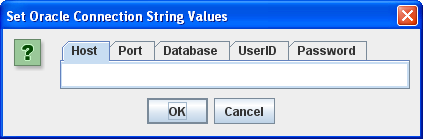
You need to enter the following values before clicking the OK button:
- Host: The
localhostkey word, orhostnameof your physical machine running the database. - Port: The
portthat the MySQL Listener is running on (the default value is3306). - Database: The Oracle TNS Alias, which is
sampledbfor the full database sample database. - UserID: The
username with permissions to the database entered that can access anITEMtable. - Password: The
passwordfor the user’s account.
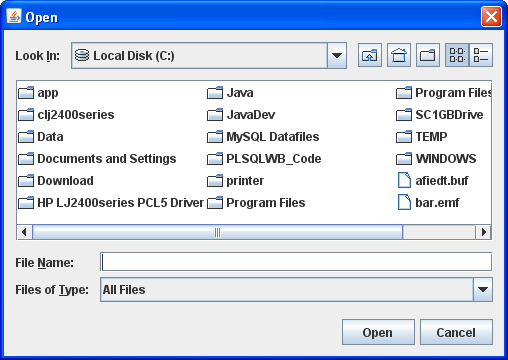
In the JFileChooser, select a file to upload to the database.
You should see what you uploaded displayed in a JFrame.
Java Source Code Program ↓
The drop down unfolds the WriteReadCLOB.java source code.
The following program has dependencies on the FileIO.jar file. You need to download it and put it in your $CLASSPATH for Linux or Mac OS X or %CLASSPATH% for Windows.
1 2 3 4 5 6 7 8 9 10 11 12 13 14 15 16 17 18 19 20 21 22 23 24 25 26 27 28 29 30 31 32 33 34 35 36 37 38 39 40 41 42 43 44 45 46 47 48 49 50 51 52 53 54 55 56 57 58 59 60 61 62 63 64 65 66 67 68 69 70 71 72 73 74 75 76 77 78 79 80 81 82 83 84 85 86 87 88 89 90 91 92 93 94 95 96 97 98 99 100 101 102 103 104 105 106 107 108 109 110 111 112 113 114 115 116 117 118 119 120 121 122 123 124 125 126 127 128 129 130 131 132 133 134 135 136 137 138 139 140 141 142 143 144 145 146 147 148 149 150 151 152 153 154 155 156 157 158 159 160 161 162 163 164 165 166 167 168 169 170 171 172 173 174 175 176 177 178 179 180 181 182 183 184 185 186 187 188 189 190 191 192 193 194 195 196 197 198 199 200 201 202 203 204 205 206 207 208 209 210 211 212 213 214 215 216 217 218 219 220 221 222 223 224 225 226 227 228 229 230 231 232 233 234 235 236 237 238 239 240 241 242 243 244 245 246 247 248 249 250 251 252 253 254 255 256 257 258 259 260 261 262 263 | // -------------------------------------------------------------------- // WriteReadCLOBMysql.java // by Michael McLaughlin // // This code demonstrates reading an image file and displaying // the image in a JLabel in a JFrame. // // The UPDATE and SELECT statements have dependencies on the // create_store.sql script. // -------------------------------------------------------------------- // Java Application class imports. import java.awt.Dimension; import java.awt.Font; import java.awt.GridLayout; import java.io.Reader; import javax.swing.JFrame; import javax.swing.JLabel; import javax.swing.JOptionPane; import javax.swing.JPanel; import javax.swing.JScrollPane; import javax.swing.JTextArea; // Generic JDBC imports. import java.sql.*; // Mysql JDBC import. import com.mysql.jdbc.Driver.*; import java.io.File; import java.sql.Connection; import java.sql.DriverManager; // Include book libraries (available at publisher website). import plsql.jdbc.DataConnectionPane; import plsql.fileio.FileIO; // -------------------------------------------------------------------/ public class WriteReadCLOBMysql extends JFrame { // Define database connections. private String host; private String port; private String dbname; private String userid; private String passwd; // Define data connection pane. private DataConnectionPane message = new DataConnectionPane(); // Construct the class. public WriteReadCLOBMysql (String s) { super(s); // Get database connection values or exit. if (JOptionPane.showConfirmDialog(this,message ,"Set Oracle Connection String Values" ,JOptionPane.OK_CANCEL_OPTION) == 0) { // Set class connection variables. host = message.getHost(); port = message.getPort(); dbname = message.getDatabase(); userid = message.getUserID(); passwd = message.getPassword(); // Print connection to console (debugging tool). message.getConnection(); // Create a JPanel for data display. ManageCLOB panel = new ManageCLOB(); // Configure the JPanel. panel.setOpaque(true); setContentPane(panel); // Configure the JFrame. setDefaultCloseOperation(JFrame.EXIT_ON_CLOSE); setLocation(100,100); pack(); setVisible(true); } else System.exit(1); } // -------------------------------------------------------------------/ private class ManageCLOB extends JPanel { // Define display variables. private String clobText; private JScrollPane scrollPane; private JTextArea textArea; // -----------------------------------------------------------------/ public ManageCLOB () { // Set layout manager. super(new GridLayout(1,0)); // Assign file read to String. clobText = FileIO.openFile(FileIO.findFile(this)); // Insert record before querying it. if (clobText.length() > 0) { if (insertClob(host,port,dbname,userid,passwd,clobText)) clobText = getQuery(host,port,dbname,userid,passwd); else clobText = null; } else System.exit(2); // Construct text area and format it. textArea = new JTextArea(clobText); textArea.setEditable(false); textArea.setFont(new Font(Font.SANS_SERIF,Font.PLAIN,14)); textArea.setLineWrap(true); textArea.setRows(10); textArea.setSize(400,100); textArea.setWrapStyleWord(true); // Put the image in container, and add label to panel. scrollPane = new JScrollPane(textArea); add(scrollPane); } // ---------------------------------------------------------------/ private Boolean insertClob(String host,String port,String dbname ,String user,String pswd,String fileString) { try { // Define connection. DriverManager.registerDriver(new com.mysql.jdbc.Driver()); Connection conn = DriverManager.getConnection("jdbc:mysql://" + host + ":" + port + "/" + dbname, user, pswd); // Create statement. PreparedStatement prest; String sql = "UPDATE item SET item_desc = ? WHERE item_title = 'The Lord of the Rings - Fellowship of the Ring' AND item_subtitle = 'Widescreen Edition'"; prest = conn.prepareStatement(sql); prest.setString(1,fileString); // Execute query. if (prest.execute()) conn.commit(); // Close resources. prest.close(); conn.close(); // Return CLOB as a String data type. return true; } // End of connection try-block. catch (SQLException e) { if (e.getSQLState() == null) { System.out.println( new SQLException("mysql Client Net8 Connection Error.", "mysql-" + e.getErrorCode() + ": Incorrect Net8 thin client arguments:\n\n" + " database name [" + dbname + "]\n", e.getErrorCode()).getSQLState()); // Return an empty String on error. return false; } else { System.out.println(e.getMessage()); // Return an empty String on error. return false; }}} // -----------------------------------------------------------------/ private String getQuery(String host,String port,String dbname ,String user,String pswd) { // Define method variables. char[] buffer; int count = 0; int length = 0; String data = null; String[] type; StringBuffer sb; try { // Define connection. DriverManager.registerDriver(new com.mysql.jdbc.Driver()); Connection conn = DriverManager.getConnection("jdbc:mysql://" + host + ":" + port + "/" + dbname, user, pswd); // Define metadata object. DatabaseMetaData dmd = conn.getMetaData(); // Create statement. Statement stmt = conn.createStatement(); // Execute query. ResultSet rset = stmt.executeQuery( "SELECT item_desc " + "FROM item " + "WHERE item_title = " + "'The Lord of the Rings - Fellowship of the Ring'"+ "AND item_subtitle = 'Widescreen Edition'"); // Get the query metadata, size array and assign column values. ResultSetMetaData rsmd = rset.getMetaData(); type = new String[rsmd.getColumnCount()]; for (int col = 0;col < rsmd.getColumnCount();col++) type[col] = rsmd.getColumnTypeName(col + 1); // Read rows and only CLOB data type columns. while (rset.next()) { for (int col = 0;col < rsmd.getColumnCount();col++) { if (type[col] == "CLOB") { // Assign result set to CLOB variable. Clob clob = rset.getClob(col + 1); // Check that it is not null and read the character stream. if (clob != null) { Reader is = clob.getCharacterStream(); // Initialize local variables. sb = new StringBuffer(); length = (int) clob.length(); // Check CLOB is not empty. if (length > 0) { // Initialize control structures to read stream. buffer = new char[length]; count = 0; // Read stream and append to StringBuffer. try { while ((count = is.read(buffer)) != -1) sb.append(buffer); // Assign StringBuffer to String. data = new String(sb); } catch (Exception e) {} } else data = (String) null; } else data = (String) null; } else { data = (String) rset.getObject(col + 1); }}} // Close resources. rset.close(); stmt.close(); conn.close(); // Return CLOB as a String data type. return data; } catch (SQLException e) { if (e.getSQLState() == null) { System.out.println( new SQLException("mysql Client Net8 Connection Error.", "mysql-" + e.getErrorCode() + ": Incorrect Net8 thin client arguments:\n\n" + " database name [" + dbname + "]\n", e.getErrorCode()).getSQLState()); // Return an empty String on error. return data; } else { System.out.println(e.getMessage()); return data; }} finally { if (data == null) System.exit(1); }}} // -----------------------------------------------------------------/ public static void main(String[] args) { // Define window. WriteReadCLOBMysql frame = new WriteReadCLOBMysql("Write & Read CLOB Text"); }} |
Excel-Oracle ODBC Driver
Somebody was trying to query Oracle via Microsoft Excel 2007, and didn’t have an Oracle ODBC Data Source that enable them to choose Oracle. I’d referred them to this post on adding MySQL’s ODBC driver to Windows 7 but that didn’t help enough. Posting this screen shot may not have helped either.

It appears I assumed too, like everyone would know that it’s on Windows 7 when Oracle 11g (or another Oracle database) is installed locally. The person who posed the question doesn’t have Oracle installed locally and can’t install it.
For those who don’t have an Oracle instance running locally, you can download the Oracle Data Access Components for Windows from the Oracle web site. It’s in the driver sections, as shown in the screen capture below:

This driver contains the necessary OLE DB and ODBC drivers, as you can see in this screen shot.

Once you’ve downloaded it, you can return to this post where you set up an Excel query against a remote Oracle database. You should take note that Microsoft’s future direction adopts Oracle ODBC, like the approach they’ve chosen with MySQL’s ODBC driver. As always, I hope this helps.
Oracle SQL Tuning Example
Somebody wanted a post on SQL statement tuning, so here it is. SQL statement tuning requires that you understand table definitions, constraints, and indexes plus how they interact through joins before you can begin tuning. Oracle presents some of the most advanced tools for tuning SQL statements.
This example works through a demonstration of tuning one statement with multiple joins. The key elements of tuning any SQL statements is understanding the table structures and data. The key worry about tuning is that optimizing for a query can harm the effectiveness of OLTP processing by slowing the performance of INSERT and UPDATE statements. Any DML statement that adds or modifies data in tables also modifies indexes built to support queries against the table.
Oracle
You have two approaches in an Oracle database. The old way and the new way. They’re really not that different but the DBMS_XPLAN package provides a richer set of analytical data for less work.
The old way and the new way both use a single way for generating the SQL execution plan. You do that with the EXPLAIN PLAN statement.
The EXPLAIN PLAN statement is followed by a SET operator. You use the SET operator to assign a value to the STATEMENT_ID column. This is a column that uniquely identifies statements in the PLAN_TABLE. You must ensure that all STATEMENT_ID values are unique, or you’ll get incorrect results when you analyze plans. There’s no constraint that magically does this for you. After you set the statement identifier, you use the FOR keyword before the statement that you want to analyze.
An example query follows below:
1 2 3 4 5 6 7 8 9 10 11 12 13 14 15 16 17 18 19 20 21 | EXPLAIN PLAN SET STATEMENT_ID = '&input' FOR SELECT DISTINCT r.rental_id , c.contact_id , tu.check_out_date AS check_out_date , tu.return_date AS return_date , 3 AS created_by , TRUNC(SYSDATE) AS creation_date , 3 AS last_updated_by , TRUNC(SYSDATE) AS last_update_date FROM member m INNER JOIN contact c ON m.member_id = c.member_id INNER JOIN transaction_upload tu ON c.first_name = tu.first_name AND NVL(c.middle_name,'x') = NVL(tu.middle_name,'x') AND c.last_name = tu.last_name AND tu.account_number = m.account_number LEFT JOIN rental r ON c.contact_id = r.customer_id AND tu.check_out_date = r.check_out_date AND tu.return_date = r.return_date; |
After you explain a statement, you need to analyze it. Oracle uses hierarchical queries to analyze them. The following is a simple script that lets you display the execution plan by nesting the levels of the explained plan.
Here’s where you chose to follow the old or new way. Click on the link below to see the old way if you’re interested but I’d suggest you use the new way.
Oracle’s Old Fashioned Way ↓
This sections shows the old way of analyzing explain plans.
The first step after you’ve explained the statement, is to analyze it. The following query performs that analysis and returns the cost of the join. More information is available with the DBMS_XPLAN package. You can also extend this to get more information from the PLAN_TABLE but it’s a lot of work that’s already done for you.
It’s nice to see the mechanics of how this analysis is performed, and that’s why this is in the post. This uses Oracle’s hierarchical query mechanism.
1 2 3 4 5 6 7 8 9 10 11 12 13 14 15 16 17 18 19 20 21 22 23 24 25 26 27 28 29 30 31 32 33 34 35 36 37 38 39 40 41 42 43 44 45 | -- Clear any reporting breaks, columns, or computing. CLEAR BREAKS CLEAR COLUMNS CLEAR COMPUTES -- Set environment to capture explained plan. SET FEEDBACK OFF SET NULL "" SET LINESIZE 120 SET PAGESIZE 9999 SET PAUSE OFF SET VERIFY OFF -- Override default substitution variable prompt. ACCEPT input1 PROMPT "What do you want as a statement ID? " -- Format the Query Plan based on a 120 character length. COL c1 FORMAT A80 HEADING 'Query Plan' -- Spool it to file. SPOOL explain_it.log -- Create the hierarchy of the join plan. SELECT LPAD(' ',2*(LEVEL-1)) || operation||' ' || options||' ' || object_name||' ' || DECODE(id,0,'Cost = '||POSITION) "Query Plan" FROM plan_table START WITH id = 0 AND statement_id = '&input1' CONNECT BY PRIOR id = parent_id AND statement_id = '&input1'; -- Reset operating environment to default. SET FEEDBACK ON SET NULL "<Null>" SET LINESIZE 80 SET PAGESIZE 999 SET VERIFY ON -- Close output file. SPOOL OFF |
Assuming you entered Query1 as the input response to the EXPLAIN PLAN statement and you name the query above explain_it.sql, then you’d call it with the following syntax:
1 2 | @explain_it.sql What do you want AS a statement ID? Query1 |
The query starts at the top-most node aligned to the left. Each level down the node shifts two spaces in to the right. You start moving out of the process when the indenting reverses. It would generate an output file like the following:
1 2 3 4 5 6 7 8 9 10 11 12 | Query Plan
--------------------------------------------------------------------------------
SELECT STATEMENT Cost = 34
HASH UNIQUE
HASH JOIN OUTER
VIEW
NESTED LOOPS
HASH JOIN
TABLE ACCESS FULL MEMBER
TABLE ACCESS FULL CONTACT
INDEX RANGE SCAN IMPORT_DATE_RANGE
TABLE ACCESS FULL RENTAL |
This tells you that the join isn’t cheap from a system resource standpoint. You can improve the query by creating indexes. Those steps are shown using the new method.
Oracle’s New Way
Oracle’s new way uses the DBMS_XPLAN package. In this post, you’ll examine only how to display results and check the impact of small changes that lead to improved query performance.
Assuming you entered Query1 as the &input response to the EXPLAIN PLAN statement above, then you’d call it with the following syntax:
1 2 3 4 5 6 7 8 | -- Expand the width of displayed output. SET LINESIZE 120 -- Query using the TABLE function that returns a user-defined object type (UDT) -- into a SQL aggregate table, which is a fancy word for normal SQL output -- (unfortunately, it's the technically accurate word). SELECT * FROM TABLE(dbms_xplan.display(NULL,'Query1')); |
The query using the DISPLAY function of the DBMS_XPLAN returns a table of data. It should generate an output stream like the following:
1 2 3 4 5 6 7 8 9 10 11 12 13 14 15 16 17 18 19 20 21 22 23 24 25 26 27 28 29 30 31 32 33 34 | PLAN_TABLE_OUTPUT
----------------------------------------------------------------------------------------------------------
Plan hash value: 3289798709
-----------------------------------------------------------------------------------------------------
| Id | Operation | Name | Rows | Bytes | Cost (%CPU)| Time |
-----------------------------------------------------------------------------------------------------
| 0 | SELECT STATEMENT | | 229 | 24274 | 50 (8)| 00:00:01 |
| 1 | HASH UNIQUE | | 229 | 24274 | 50 (8)| 00:00:01 |
|* 2 | HASH JOIN OUTER | | 229 | 24274 | 49 (7)| 00:00:01 |
| 3 | VIEW | | 4 | 248 | 37 (6)| 00:00:01 |
|* 4 | HASH JOIN | | 4 | 572 | 37 (6)| 00:00:01 |
|* 5 | HASH JOIN | | 15 | 1230 | 7 (15)| 00:00:01 |
| 6 | TABLE ACCESS FULL | MEMBER | 9 | 180 | 3 (0)| 00:00:01 |
| 7 | TABLE ACCESS FULL | CONTACT | 15 | 930 | 3 (0)| 00:00:01 |
| 8 | EXTERNAL TABLE ACCESS FULL| TRANSACTION_UPLOAD | 8168 | 486K| 30 (4)| 00:00:01 |
| 9 | TABLE ACCESS FULL | RENTAL | 4689 | 201K| 11 (0)| 00:00:01 |
-----------------------------------------------------------------------------------------------------
Predicate Information (identified by operation id):
---------------------------------------------------
2 - access("TU"."RETURN_DATE"="R"."RETURN_DATE"(+) AND
"TU"."CHECK_OUT_DATE"="R"."CHECK_OUT_DATE"(+) AND "C"."CONTACT_ID"="R"."CUSTOMER_ID"(+))
4 - access("C"."FIRST_NAME"="TU"."FIRST_NAME" AND
NVL("C"."MIDDLE_NAME",'x')=NVL("TU"."MIDDLE_NAME",'x') AND "C"."LAST_NAME"="TU"."LAST_NAME"
AND "TU"."ACCOUNT_NUMBER"="M"."ACCOUNT_NUMBER")
5 - access("C"."MEMBER_ID"="M"."MEMBER_ID")
Note
-----
- dynamic sampling used for this statement
30 rows selected. |
The first thing to do is move the data immediately from an external table into a production table. You do that with the following command:
1 2 | -- Create a new table from an existing one. CREATE TABLE transaction_uploaded AS SELECT * FROM transaction_upload; |
Truncating the PLAN_TABLE table, is the easiest way to start over by reusing the statement identifiers, like Query1. Then, you can edit your EXPLAIN PLAN script and change TRANSACTION_UPLOAD table reference to TRANSACTION_UPLOADED. Now, the query using the DISPLAY function of the DBMS_XPLAN returns a reduction in cost from 50 to 34.
1 2 3 4 5 6 7 8 9 10 11 12 13 14 15 16 17 18 19 20 21 22 23 24 25 26 27 28 29 30 31 32 33 34 35 | PLAN_TABLE_OUTPUT
--------------------------------------------------------------------------------------------
Plan hash value: 3624831533
--------------------------------------------------------------------------------------------
| Id | Operation | Name | Rows | Bytes | Cost (%CPU)| Time |
--------------------------------------------------------------------------------------------
| 0 | SELECT STATEMENT | | 400 | 42400 | 34 (6)| 00:00:01 |
| 1 | HASH UNIQUE | | 400 | 42400 | 34 (6)| 00:00:01 |
|* 2 | HASH JOIN OUTER | | 400 | 42400 | 33 (4)| 00:00:01 |
| 3 | VIEW | | 7 | 434 | 22 (5)| 00:00:01 |
| 4 | NESTED LOOPS | | 7 | 1001 | 22 (5)| 00:00:01 |
|* 5 | HASH JOIN | | 15 | 1230 | 7 (15)| 00:00:01 |
| 6 | TABLE ACCESS FULL| MEMBER | 9 | 180 | 3 (0)| 00:00:01 |
| 7 | TABLE ACCESS FULL| CONTACT | 15 | 930 | 3 (0)| 00:00:01 |
|* 8 | INDEX RANGE SCAN | IMPORT_DATE_RANGE | 1 | 61 | 1 (0)| 00:00:01 |
| 9 | TABLE ACCESS FULL | RENTAL | 4689 | 201K| 11 (0)| 00:00:01 |
--------------------------------------------------------------------------------------------
Predicate Information (identified by operation id):
---------------------------------------------------
2 - access("TU"."RETURN_DATE"="R"."RETURN_DATE"(+) AND
"TU"."CHECK_OUT_DATE"="R"."CHECK_OUT_DATE"(+) AND
"C"."CONTACT_ID"="R"."CUSTOMER_ID"(+))
5 - access("C"."MEMBER_ID"="M"."MEMBER_ID")
8 - access("TU"."ACCOUNT_NUMBER"="M"."ACCOUNT_NUMBER" AND
"C"."LAST_NAME"="TU"."LAST_NAME" AND "C"."FIRST_NAME"="TU"."FIRST_NAME" AND
NVL("C"."MIDDLE_NAME",'x')=NVL("MIDDLE_NAME",'x'))
Note
-----
- dynamic sampling used for this statement
31 rows selected. |
A downside or quirk of thought, I’m never quite sure but folks look to the bottom not the middle first. Maybe in this case you tackle it first because it’s the attractive inefficiency due to the number of rows returned by a full table scan (most expensive).
You add a unique index that maps to the natural key for the RENTAL table, like this:
1 2 | CREATE UNIQUE INDEX natural_key_rental ON rental (rental_id, customer_id, check_out_date, return_date); |
You run the EXPLAIN PLAN again, using Query2, and then analyze it. You’ll see that the query uses an index fast full scan and that the cost decreases by 2.
1 2 3 4 5 6 7 8 9 10 11 12 13 14 15 16 17 18 19 20 21 22 23 24 25 26 27 28 29 30 31 32 33 34 35 | PLAN_TABLE_OUTPUT
-----------------------------------------------------------------------------------------------
Plan hash value: 3402838417
---------------------------------------------------------------------------------------------
| Id | Operation | Name | Rows | Bytes | Cost (%CPU)| Time |
---------------------------------------------------------------------------------------------
| 0 | SELECT STATEMENT | | 400 | 42400 | 32 (7)| 00:00:01 |
| 1 | HASH UNIQUE | | 400 | 42400 | 32 (7)| 00:00:01 |
|* 2 | HASH JOIN OUTER | | 400 | 42400 | 31 (4)| 00:00:01 |
| 3 | VIEW | | 7 | 434 | 22 (5)| 00:00:01 |
| 4 | NESTED LOOPS | | 7 | 1001 | 22 (5)| 00:00:01 |
|* 5 | HASH JOIN | | 15 | 1230 | 7 (15)| 00:00:01 |
| 6 | TABLE ACCESS FULL| MEMBER | 9 | 180 | 3 (0)| 00:00:01 |
| 7 | TABLE ACCESS FULL| CONTACT | 15 | 930 | 3 (0)| 00:00:01 |
|* 8 | INDEX RANGE SCAN | IMPORT_DATE_RANGE | 1 | 61 | 1 (0)| 00:00:01 |
| 9 | INDEX FAST FULL SCAN| NATURAL_KEY_RENTAL | 4689 | 201K| 9 (0)| 00:00:01 |
---------------------------------------------------------------------------------------------
Predicate Information (identified by operation id):
---------------------------------------------------
2 - access("TU"."RETURN_DATE"="R"."RETURN_DATE"(+) AND
"TU"."CHECK_OUT_DATE"="R"."CHECK_OUT_DATE"(+) AND
"C"."CONTACT_ID"="R"."CUSTOMER_ID"(+))
5 - access("C"."MEMBER_ID"="M"."MEMBER_ID")
8 - access("TU"."ACCOUNT_NUMBER"="M"."ACCOUNT_NUMBER" AND
"C"."LAST_NAME"="TU"."LAST_NAME" AND "C"."FIRST_NAME"="TU"."FIRST_NAME" AND
NVL("C"."MIDDLE_NAME",'x')=NVL("MIDDLE_NAME",'x'))
Note
-----
- dynamic sampling used for this statement
31 rows selected. |
You add a unique index that maps the surrogate and natural key for the MEMBER table, like this:
1 2 | CREATE UNIQUE INDEX member_account ON member (member_id, account_number); |
You run the EXPLAIN PLAN again, using Query3, and then analyze it. You’ll see that the query uses an index range scan instead of a full table access of the MEMBER table. This decreases the cost by 2.
1 2 3 4 5 6 7 8 9 10 11 12 13 14 15 16 17 18 19 20 21 22 23 24 25 26 27 28 29 30 31 32 33 34 35 | PLAN_TABLE_OUTPUT
----------------------------------------------------------------------------------------------
Plan hash value: 656512492
---------------------------------------------------------------------------------------------
| Id | Operation | Name | Rows | Bytes | Cost (%CPU)| Time |
---------------------------------------------------------------------------------------------
| 0 | SELECT STATEMENT | | 400 | 42400 | 30 (7)| 00:00:01 |
| 1 | HASH UNIQUE | | 400 | 42400 | 30 (7)| 00:00:01 |
|* 2 | HASH JOIN OUTER | | 400 | 42400 | 29 (4)| 00:00:01 |
| 3 | VIEW | | 7 | 434 | 19 (0)| 00:00:01 |
| 4 | NESTED LOOPS | | 7 | 1001 | 19 (0)| 00:00:01 |
| 5 | NESTED LOOPS | | 15 | 1230 | 4 (0)| 00:00:01 |
| 6 | TABLE ACCESS FULL| CONTACT | 15 | 930 | 3 (0)| 00:00:01 |
|* 7 | INDEX RANGE SCAN | MEMBER_ACCOUNT | 1 | 20 | 1 (0)| 00:00:01 |
|* 8 | INDEX RANGE SCAN | IMPORT_DATE_RANGE | 1 | 61 | 1 (0)| 00:00:01 |
| 9 | INDEX FAST FULL SCAN| NATURAL_KEY_RENTAL | 4689 | 201K| 9 (0)| 00:00:01 |
---------------------------------------------------------------------------------------------
Predicate Information (identified by operation id):
---------------------------------------------------
2 - access("TU"."RETURN_DATE"="R"."RETURN_DATE"(+) AND
"TU"."CHECK_OUT_DATE"="R"."CHECK_OUT_DATE"(+) AND
"C"."CONTACT_ID"="R"."CUSTOMER_ID"(+))
7 - access("C"."MEMBER_ID"="M"."MEMBER_ID")
8 - access("TU"."ACCOUNT_NUMBER"="M"."ACCOUNT_NUMBER" AND
"C"."LAST_NAME"="TU"."LAST_NAME" AND "C"."FIRST_NAME"="TU"."FIRST_NAME" AND
NVL("C"."MIDDLE_NAME",'x')=NVL("MIDDLE_NAME",'x'))
Note
-----
- dynamic sampling used for this statement
31 rows selected. |
You add a unique index that maps the surrogate, foreign key to the MEMBER table, and the natural key for the CONTACT table, like this:
1 2 | CREATE UNIQUE INDEX contact_member ON contact (contact_id, member_id, last_name, first_name, NVL(middle_name,'x')); |
You run the EXPLAIN PLAN again, using Query3, and then analyze it. You’ll see that the query uses an index full scan instead of a full table access of the CONTACT table. This decreases the cost by another 2.
1 2 3 4 5 6 7 8 9 10 11 12 13 14 15 16 17 18 19 20 21 22 23 24 25 26 27 28 29 30 31 32 33 34 35 | PLAN_TABLE_OUTPUT
----------------------------------------------------------------------------------------------
Plan hash value: 1185696375
---------------------------------------------------------------------------------------------
| Id | Operation | Name | Rows | Bytes | Cost (%CPU)| Time |
---------------------------------------------------------------------------------------------
| 0 | SELECT STATEMENT | | 400 | 42400 | 28 (8)| 00:00:01 |
| 1 | HASH UNIQUE | | 400 | 42400 | 28 (8)| 00:00:01 |
|* 2 | HASH JOIN OUTER | | 400 | 42400 | 27 (4)| 00:00:01 |
| 3 | VIEW | | 7 | 434 | 17 (0)| 00:00:01 |
| 4 | NESTED LOOPS | | 7 | 1001 | 17 (0)| 00:00:01 |
| 5 | NESTED LOOPS | | 15 | 1230 | 2 (0)| 00:00:01 |
| 6 | INDEX FULL SCAN | CONTACT_MEMBER | 15 | 930 | 1 (0)| 00:00:01 |
|* 7 | INDEX RANGE SCAN | MEMBER_ACCOUNT | 1 | 20 | 1 (0)| 00:00:01 |
|* 8 | INDEX RANGE SCAN | IMPORT_DATE_RANGE | 1 | 61 | 1 (0)| 00:00:01 |
| 9 | INDEX FAST FULL SCAN| NATURAL_KEY_RENTAL | 4689 | 201K| 9 (0)| 00:00:01 |
---------------------------------------------------------------------------------------------
Predicate Information (identified by operation id):
---------------------------------------------------
2 - access("TU"."RETURN_DATE"="R"."RETURN_DATE"(+) AND
"TU"."CHECK_OUT_DATE"="R"."CHECK_OUT_DATE"(+) AND
"C"."CONTACT_ID"="R"."CUSTOMER_ID"(+))
7 - access("C"."MEMBER_ID"="M"."MEMBER_ID")
8 - access("TU"."ACCOUNT_NUMBER"="M"."ACCOUNT_NUMBER" AND
"C"."LAST_NAME"="TU"."LAST_NAME" AND "C"."FIRST_NAME"="TU"."FIRST_NAME" AND
NVL("MIDDLE_NAME",'x')=NVL("MIDDLE_NAME",'x'))
Note
-----
- dynamic sampling used for this statement
31 rows selected. |
The question evolves after you tune the first query. Then, you must check what impacts may exist on other queries, like the statement that you use to merge data into the TRANSACTION table. You may have to suppress indexes in a subsequent query, or after you tune it, return and suppress an index here. You suppress an index by adding a '0' to a NUMBER or DATE column, and by concatenating a null string to a character data type.
Examples of Suppressing Indexes
The following is an example of suppressing an index built on a string. It extends the tuning statement earlier in the blog post, and references line #17. The concatenation of a null string suppresses the index.
17 | AND c.last_name = tu.last_name||'' |
The following is an example of suppressing an index built on a date. It extends the tuning statement earlier in the blog post, and references line #20. Adding a zero leaves the value intact and suppresses the index.
20 | AND tu.check_out_date = r.check_out_date+0 |
Oracle Linux & VMWare Tools
Wow, I’ve been busy since OOW2011. This is the first post since I left for San Francisco. My Android phone got blown out by a forced upgrade and would only charge when actively connected across the USB to the computer. At the conference, my laptop was sidelined as a charger.
Anyway, I’m back working on virtual environments again. I found a couple slight variation installing VMWare Tools on Oracle Unbreakable Linux. Here are the post installation steps that I encountered, and the IP addresses are based on how VMWare configured DHCP, which is qualified in this older post.
- Navigate to the VMWare Menu, choose Virtual Machine and in the drop down menu Install VMWare Tools. This will mount a virtual CD in the Oracle Unbreakable Linux virtual machine and it launches the following dialog box:

- Open a terminal session by right clicking anywhere in the desktop, and then choose Open in Terminal from the context menu. You can then run the VMWare Toolkit by following these instructions:
cd /media/VMware\ Tools cp VMwareTools-8.4.7-416484.tar.gz /tmp cd /tmp gunzip VMwareTools-8.4.7-416484.tar.gz tar -xvf VMwareTools-8.4.7-416484.tar cd vmware-tools-distrib sudo ./vmware-install.pl |
The last step requires that you reply to a set of prompts. If you’d like to accept the default at one time, you can use the following command:
sudo ./vmware-install.pl --default |
You should most likely encounter an error like the following, which it appears you can ignore. If I find anything to the contrary, the post will be updated with findings.
(EE) Failed to load module "vmwgfx" (module does not exist, 0) (EE) vmware: Please ignore the above warnings about not being able to load module/driver vmwgfx (EE) open /dev/fb0: No such device |
- In the terminal session you should configure three files to make sure your networking works. I found that the dialogs failed to set one key element, so it’s simply easier to do this manually. Rather than using
sudo, you should open arootshell by doing:
su - root |
Enter your user’s password:
Password: |
You should use vi to edit and save the resolv.conf file with appropriate domain, search, and nameserver values. The values below work for VMWare when the gateway IP address is 172.16.123.2.
# Generated by NetworkManager
domain localdomain
search localdomain
nameserver 172.16.123.2 |
Using vi, edit the /etc/sysconfig/network file to include an appropriate gateway IP address, like so:
NETWORKING=yes HOSTNAME=localhost.localdomain GATEWAY=172.16.123.2 |
The last file to fix is /etc/sysconfig/network-scripts/ifcfg-eth0 file. This is the file that isn’t completely configured by the GUI component (it fails set the ONBOOT value to yes).
DEVICE=eth0 HWADDR=00:0c:29:31:ef:46 ONBOOT=yes NM_CONTROLLED=yes BOOTPROTO=dhcp TYPE=Ethernet DNS1=172.16.123.2 USERCTL=no PEERDNS=yes IPV6INIT=no |
You reset networking with the following command:
/etc/rc.d/init.d/network restart |
As always, I hope this helps a few folks.
Adding user to sudoers
Somebody asked why adding a user to the wheel group in Oracle Enterprise Linux didn’t enable them as a sudoer, as qualified in my earlier Fedora post. The reason is that you also need to modify the /etc/sudoers file to specify users allowed that privilege (and the file differs from it’s Fedora cousin). If you have the root user privileges, you can do the following:
- Change to the
rootuser account withsu, and provide the password when prompted. The syntax is:
su - root |
- You can find the line you need to change with this command:
cat /etc/sudoers | grep %wheel |
# comment. If you don’t want authorized sudoers to provide a password, modify the second line by removing the # comment. Open the /etc/sudoers file with vi or gedit if you’d like a GUI editor.
# %wheel ALL=(ALL) ALL # %wheel ALL=(ALL) NOPASSWD: ALL |
Hope this helps, I’m off to Oracle Open World 2011 tomorrow.
Quick update for Fedora 20, you su to root and add your user to the sudoers list with the following syntax:
usermod someusername -a -G wheel |
By the way, don’t forget to log off and then back on to the account.
Fedora Install of Oracle 11g
After the installation of Oracle 11g XE on Windows, I anticipated problems installing on Fedora. It’s terrific to report it was by far simpler to install on Fedora. This post provides the steps, and builds on the Fedora configuration published earlier this week.
- After you download the software from the Oracle web site, you’ll need to expand the compressed file. When you double click on the download item you will see the following screen. Click Extract at the top of the display.

- The Extract displays the following dialog. Click the Create Folder button and you’ll get an entry point for a new directory in your user’s directory. For the example, Oracle11gXE

- After creating the directory, click the Extract button.

- The extract process completes and shows the following dialog.

- The Disk1 directory will show the following contents.

- You need to drop down into a Terminal session, which you can launch by clicking on Applications, System Tools, and Terminal in the menu.
sudo rpm -iv oracle-xe-11.2.0-1.0.x86_64.rpm |
This command will install the packages in verbose syntax and display the following messages:
[sudo] password for mclaughlinm: Preparing packages for installation... oracle-xe-11.2.0-1.0 Executing post-install steps... You must run '/etc/init.d/oracle-xe configure' as the root user to configure the database. |
- This step requires that you assume the role of the
rootuser, which can be done with this syntax:
sudo sh |
In this root shell, you run the Oracle 11g XE configuration with this command:
/etc/init.d/oracle-xe configure |
The following are the text prompts that you accept to configure Oracle 11g XE:
Oracle Database 11g Express Edition Configuration ------------------------------------------------- This will configure on-boot properties of Oracle Database 11g Express Edition. The following questions will determine whether the database should be starting upon system boot, the ports it will use, and the passwords that will be used for database accounts. Press <Enter> to accept the defaults. Ctrl-C will abort. Specify the HTTP port that will be used for Oracle Application Express [8080]: Specify a port that will be used for the database listener [1521]: Specify a password to be used for database accounts. Note that the same password will be used for SYS and SYSTEM. Oracle recommends the use of different passwords for each database account. This can be done after initial configuration: Confirm the password: Do you want Oracle Database 11g Express Edition to be started on boot (y/n) [y]: Starting Oracle Net Listener...Done Configuring database... Starting Oracle Database 11g Express Edition instance...Done Installation completed successfully. |
After completing the configuration, you need to do two things. First, you need to modify the .bash_profile file for your user (covered in the next step). Second, you need to reboot your system.
- This step requires that you exit the
rootshell by typing theexitcommand. This should put you back into your administration account with sudoer privileges. You usevito edit and add the following to the.bashrcfile.
. /u01/app/oracle/product/11.2.0/xe/bin/oracle_env.sh |
Or, you can write your own file, like this:
# Oracle Settings TMP=/tmp; export TMP TMPDIR=$TMP; export TMPDIR ORACLE_HOSTNAME=localhost.localdomain; export ORACLE_HOSTNAME ORACLE_UNQNAME=DB11G; export ORACLE_UNQNAME ORACLE_BASE=/u01/app/oracle; export ORACLE_BASE ORACLE_HOME=$ORACLE_BASE/product/11.2.0/xe; export ORACLE_HOME ORACLE_SID=XE; export ORACLE_SID NLS_LANG=`$ORACLE_HOME/bin/nls_lang.sh`; export NLS_LANG ORACLE_TERM=xterm; export ORACLE_TERM PATH=/usr/sbin:$PATH; export PATH PATH=$ORACLE_HOME/bin:$PATH; export PATH LD_LIBRARY_PATH=$ORACLE_HOME/lib:/lib:/usr/lib; export LD_LIBRARY_PATH CLASSPATH=$ORACLE_HOME/JRE:$ORACLE_HOME/jlib:$ORACLE_HOME/rdbms/jlib; export CLASSPATH if [ $USER = "oracle" ]; then if [ $SHELL = "/bin/ksh" ]; then ulimit -p 16384 ulimit -n 65536 else ulimit -u 16384 -n 65536 fi fi |
You can now log in to the Oracle database with the following syntax from the command line. You’ll be prompted for the system password that you entered during the configuration steps. I’ll add another post on SQL Developer later this week.
sqlplus system |
- This step is optional. You can configure an
oracleenv.shfile in theoracleuser’s home directory. While you could put this in the.bashrcfile, theoracleaccount isn’t bootable. That’s why I recommend putting it in an environment file.
# .bashrc # Source global definitions if [ -f /etc/bashrc ]; then . /etc/bashrc fi # Uncomment the following line if you don't like systemctl's auto-paging feature: # export SYSTEMD_PAGER= # User specific aliases and functions . /u01/app/oracle/product/11.2.0/xe/bin/oracle_env.sh # Wrap sqlplus with rlwrap to edit prior lines with the # up, down, left and right keys. sqlplus() { if [ "$RLWRAP" = "0" ]; then sqlplus "$@" else rlwrap sqlplus "$@" fi } # Set vi as a command line editor. set -o vi |
If you want to use the menu choices added by the installation, you need to put your privileged sudoer in the dba group. I wrote a blog post on it here.
Configure Fedora on VMWare
It seems Fedora is always a bit of work. You begin by mistakenly downloading Fedora Live, which isn’t really the product but a run-time demonstration product. After finding the product, if you choose a full installation, there are post installation steps to complete. The first time you launch it in VMWare, you’ll see a Gnome 3 Failed to Load error dialog like this:

I suspected that installing VMWare Tools would fix that, and it did. However, your entry account doesn’t have “sudoers” permissions. You must add them before you can run VMWare Tools. There are six steps to enable your user with the sudoers permissions and four others to configure the standard installation:
- Navigate to the Applications menu choice in the upper left hand corner. You’ll get the following drop-down menu. Click on Other menu item to launch a dependent floating menu.

- The following floating menu displays to the right. Click on Users and Groups menu item at the bottom of the list.

- The choice from the floating menu prompts account validation. Enter your password and click the OK button.

- After validating your password, the User Manager dialog opens. Click on the single user that should be installed –
mclaughlinm. Click the Properties button to change the groups assigned to the user.

- The User Properties dialog opens with the default User Data tab clicked. Click on the Groups tab to add the user to the
wheelgroup as a property of your user.

- Scroll down through the list of groups and click the
wheelgroup check box. Like the Mac OS, the wheel group provides “sudoer” privileges. Click the OK button to assign the group to the user.

- Navigate to the VMWare Menu, choose Virtual Machine and in the drop down menu Install VMWare Tools. This will mount a virtual CD in the Fedora virtual machine.
- Navigate to the Places menu choice and then Computer. Inside the Computer, choose the VMware Tools from the Devices section and you’ll see the following:

- Open a terminal session by choosing Applications, within the drop down choose System Tools, and then launch a Terminal session. You can then run the VMWare Toolkit by following these instructions:
cd /media/VMware\ Tools cp VMwareTools-8.4.7-416484.tar.gz /tmp cd /tmp gunzip VMwareTools-8.4.7-416484.tar.gz tar -xvf VMwareTools-8.4.7-416484.tar cd vmware-tools-distrib sudo ./vmware-install.pl |
The last step requires that you reply to a set of prompts. If you’d like to accept the default at one time, you can use the following command:
sudo ./vmware-install.pl --default |
If you find limited access to the system after installing or upgrading VMWare Tools, you may have packages in the caught between start and finish. You can clean them up with the following syntax, as the root user:
sudo yum-complete-transaction |
- In the terminal session you should configure three files to make sure your networking works. I found that the dialogs failed to set one key element, so it’s simply easier to do this manually. Rather than using
sudo, you should open arootshell with the following command:
sudo sh |
Enter your user’s password:
[sudo] password for mclaughlinm: |
You should use vi to edit and save the resolv.conf file with appropriate domain, search, and nameserver values. The values below work for VMWare when the gateway IP address is 172.16.123.2.
# Generated by NetworkManager
domain localdomain
search localdomain
nameserver 172.16.123.2 |
Using vi, edit the /etc/sysconfig/network file to include an appropriate gateway IP address, like so:
NETWORKING=yes HOSTNAME=localhost.localdomain GATEWAY=172.16.123.2 |
The last file to fix is /etc/sysconfig/network-scripts/ifcfg-eth0 file. This is the file that isn’t completely configured by the GUI component (it fails set the ONBOOT value to yes).
DEVICE=eth0 HWADDR=00:0c:29:31:ef:46 ONBOOT=yes NM_CONTROLLED=yes BOOTPROTO=dhcp TYPE=Ethernet DNS1=172.16.123.2 USERCTL=no PEERDNS=yes IPV6INIT=no |
You reset networking with the following command:
/etc/rc.d/init.d/network restart |
As always, I hope this helps a few folks.
Oracle & MySQL Handbook
 My new Oracle Database 11g & MySQL 5.6 Developer Handbook will be available at Oracle Open World 2011 (OOW2011). It’s a great book to compare and contrast approaches in Oracle and MySQL. It covers Oracle SQL & PL/SQL and MySQL SQL & SQL/PSM (Persistent Stored Modules – functions and procedures). Unfortunately, it seems like the book won’t be available on amazon.com until much later in the month, and not available from amazon.de until November. You can read about it at McGraw Hill Professional’s web site. They’ve made a special effort to get copies to OOW2011. Here’s the source code for the book because I don’t know when it’ll be on the publisher’s web site.
I’ll also be at OOW2011. They’ve scheduled me in the bookstore (probably 2nd floor of Moscone North, as usual) from 10 to 10:30 A.M. on Monday and Wednesday for a book signing. If you’re at OOW2011 and you like to stop by and say hello, I look forward to meeting you. Many folks leave comments on the posts but only a few suggest what they’d like me to write on when I’ve got a chance, and you can do that if you stop by to chat.
It’s also interesting to know how many folks use both Oracle and MySQL (any updates on that are always appreciated). Last year at the Bioinformatics and Computation Biology (ACM-BCB 2010) Conference in Niagara Falls, I found it interesting to discover how many pharmaceutical companies and national labs were using both Oracle and MySQL. They appeared consistent about using Oracle for their systems governed by legal compliance rules and MySQL for actual research.
The pharmaceutical companies also had clear barriers between the researchers and professional IT staff, specifically the DBAs. It seems that the DBAs don’t want to cede any control over installed Oracle instances, and they place barriers to research by denying additional Oracle instances when their site licenses would allow them to do so at no incremental cost. On the other hand, the DBAs are fine with letting researchers host and pilot with the MySQL Community Edition databases. This book supports those trying to figure out how to write portable SQL and how to port solutions from MySQL to Oracle and vice versa.
Hope to meet a few new folks at OOW2011. The Kindle version of the book became available 11/25/2011.
As an addendum to this original post, some folks asked for the summary of content for the new book, and the location of the errata (the errors of omission and commission in the book). Below is a summary of the book from page XVIII of the Introduction, and the errata is in the second comment to this post:
Part I: Development Components
- Chapter 1, “Architectures,” explains the Oracle 11g and MySQL 5.6 development architectures and highlights the comparative aspects of both client and server environments.
- Chapter 2, “Client Interfaces,” explains and demonstrates the basics of how you use SQL*Plus and MySQL Monitor client software.
- Chapter 3, “Security,” explains the security barriers for database servers and Data Control Language (DCL) commands that let you manage user and account privileges in the database servers.
- Chapter 4, “Transactions,” explains the nature of ACID-compliant transactions and the Two-phase Commit (2PC) process demonstrated by INSERT, UPDATE, and DELETE statements.
- Chapter 5, “Constraints,” explains the five primary database-level constraints and covers the check, not null, unique, primary key, and foreign key constraints.
Part II: SQL Development
- Chapter 6, “Creating Users and Structures,” explains how you can create users, databases, tables, sequences, and indexes.
- Chapter 7, “Modifying Users and Structures,” explains how you modify users, databases, tables, sequences, and indexes.
- Chapter 8, “Inserting Data,” explains how you insert data into tables.
- Chapter 9, “Updating Data,” explains how you update data in tables.
- Chapter 10, “Deleting Data,” explains how you delete data from tables.
- Chapter 11, “Querying Data,” explains how you query data from a single table, from a join of two or more tables, and from a join of two or more queries through set operators.
- Chapter 12, “Merging Data,” explains how you import denormalized data from external tables or source files and insert or update records in normalized tables.
Part III: Stored Program Development
- Chapter 13, “PL/SQL Basics,” explains the basics of using PL/SQL to write transactional blocks of code.
- Chapter 14, “SQL/PSM Basics,” explains the basics of using SQL/PSM to write transactional blocks of code.
- Chapter 15, “Triggers,” explains how to write database triggers in Oracle and MySQL databases.
Part IV: Appendix
- Appendix, Covers the answers to the mastery questions at the end of the chapters.
 Subscribe via RSS